Shopify AI Agent Setup Guide for Beginners
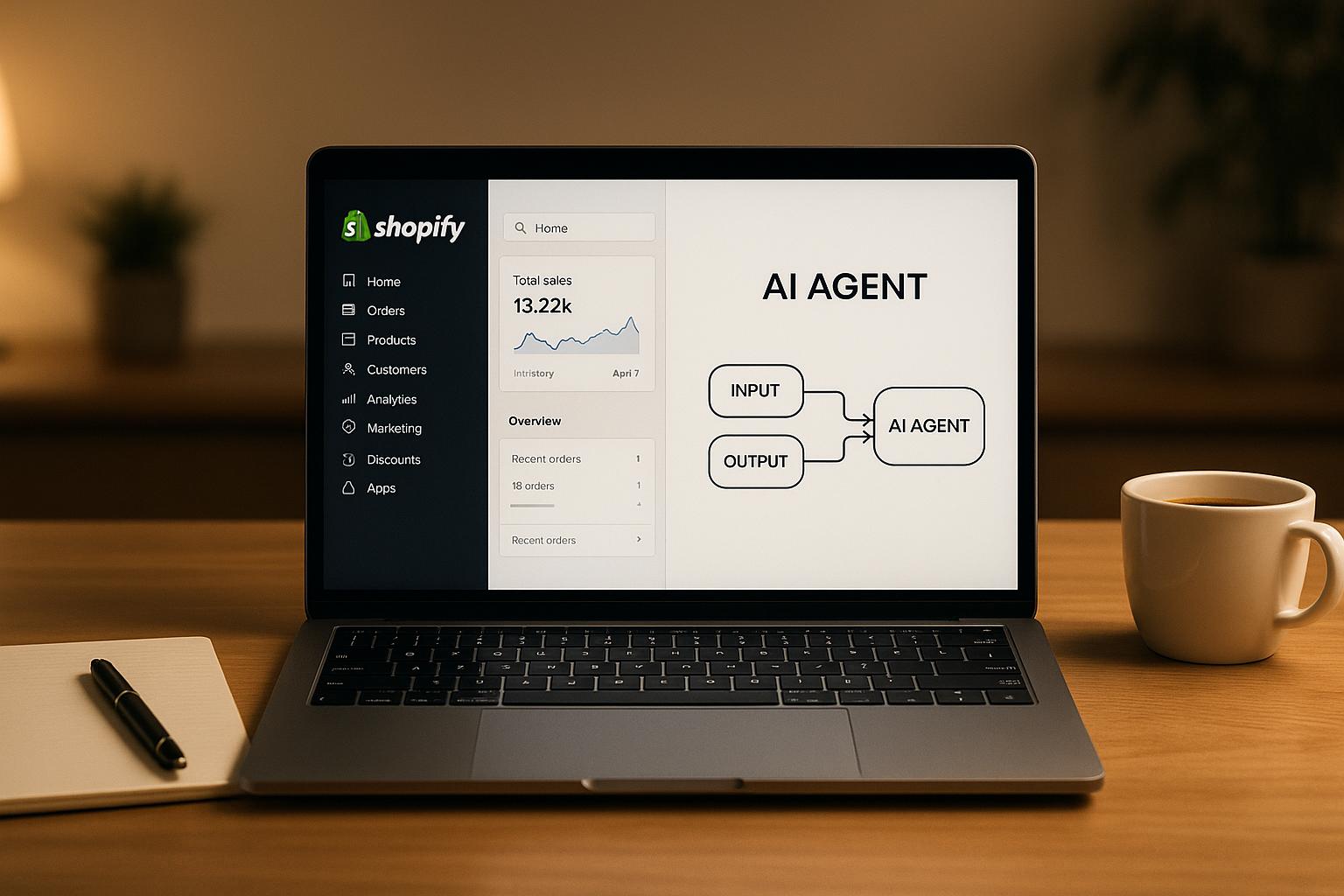
Tired of repetitive customer questions on your Shopify store? AI-powered customer service agents can handle these for you - instantly and efficiently. They use tools like machine learning to answer common queries, track orders, or suggest products, freeing up your team to focus on complex tasks. Here’s what you’ll learn in this guide:
- What AI agents do: They provide real-time, personalized responses by accessing your Shopify data.
- Key benefits: 24/7 availability, faster responses, and improved customer satisfaction.
- How to set up: Integrate Shopify with klink.cloud, train your AI agent, and test workflows.
- Tips for success: Start small, focus on common inquiries, and monitor performance for ongoing improvements.
This guide will show you how to connect your Shopify store to klink.cloud, configure your AI agent, and streamline your customer support process step by step.
Preparing for AI Agent Setup in Shopify

Getting your Shopify store ready for klink.cloud integration involves organizing both your technical setup and business objectives. This groundwork helps ensure smooth API integration and effective customer support automation.
Technical and Business Requirements
Before diving in, your Shopify store must meet a few key prerequisites. First, make sure you're on an active Shopify plan that allows app installations. At least one team member should have full admin access to handle app installations, manage settings, and create API credentials without limitations.
On the technical side, you'll need to create a private or custom app in Shopify's admin panel. This step generates the API credentials required for Admin API access. Set API scopes thoughtfully - start with read-only access for order and product data to minimize risk. Once you've tested the integration, you can grant write permissions for tasks like updating order notes or managing returns.
Additionally, confirm that your sales channels - whether it's your online store, social media platforms, or messaging apps - are active and functioning as expected.
From a business perspective, it's crucial to define clear customer service goals before setting up the AI. Are you looking to reduce response times, improve self-service options, or extend support hours beyond the typical U.S. business day? Pinpoint current challenges, such as high ticket volumes for order status or returns, to determine which tasks to automate. Establish baseline metrics - like monthly ticket volume, average response time, and customer satisfaction scores - to measure the AI agent’s impact. According to Shopify, nearly half of online shoppers (47%) expect faster and more helpful responses, making AI tools a powerful way for ecommerce brands to meet these expectations while scaling their support efforts.
Identifying Core Use Cases
Start by reviewing your support tickets or emails from the past 30 to 90 days. Categorize these inquiries into groups like order status, shipping questions, returns and exchanges, product fit or sizing, and store policies. Rank these categories based on their frequency and their impact on customer satisfaction.
Focus on simple, rule-based scenarios for automation. These are low-risk and rely on structured, easily accessible information in Shopify or static documents, making them ideal for beginners.
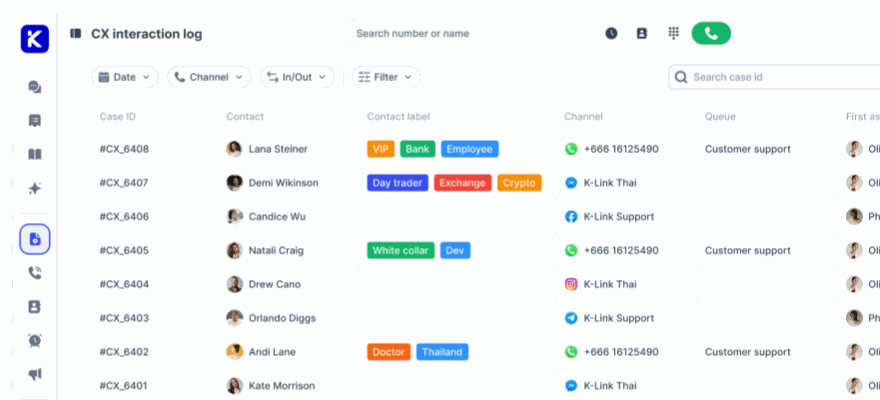
Use klink.cloud’s case management features to analyze past customer interactions. Look at metrics like resolution times, wait times, and customer satisfaction scores. Review conversation tags (e.g., language preferences or VIP status) and analyze keywords in customer inquiries to identify common questions, such as "Where is my order?" or "How can I return this item?".
Once you've identified your top three to five use cases, outline each as a straightforward, step-by-step conversational flow. Define what the AI should ask, what details it should verify in Shopify, and how it should respond. For instance, an order status flow might involve requesting the customer’s email and order number, validating the information in Shopify, providing the latest tracking details, and offering follow-up options like return instructions if the order has been delivered.
To ensure a smooth customer experience, include safeguards for edge cases - like missing or mismatched information - and clear instructions for escalating complex issues to a human support agent. This guarantees customers can access more personalized help when needed.
Preparing Training Content
With your technical setup and use cases in place, the next step is to prepare your training materials. The effectiveness of your AI agent depends on the quality of the content you provide. Gather all relevant resources, such as help center articles, FAQs, return and exchange policies, shipping details, sizing guides, and any internal macros or canned responses your team uses. Organize this information into easy-to-navigate formats, such as categorized FAQs and clearly labeled policy sections (e.g., "Returns accepted within 30 days for unworn items"). Ensure your product data in Shopify - titles, descriptions, tags, and variants - is accurate and up to date.
Standardize numeric and date formats for U.S. customers. Use prices in USD (e.g., "$75.00"), and write dates as month/day/year. This ensures responses are consistent and appropriate across all channels, whether web, email, or chat.
klink.cloud combines this structured content with real-time Shopify data, such as product availability, order history, and pricing. When a customer asks a question, the AI can pull from established guidelines (like return policies) while integrating live data for tailored responses.
To make your training materials effective, use concise, clear language with specific rules. For example, instead of vague instructions, state, "Returns are accepted within 30 calendar days of delivery for unworn items." Maintain consistent terminology by using "USD" and the "To make your training materials effective, use concise, clear language with specific rules. For example, instead of vague instructions, state, "Returns are accepted within 30 calendar days of delivery for unworn items." Maintain consistent terminology by using "USD" and the "$" symbol, following American English spelling, and clearly specifying measurements. Regularly update your content - monthly or quarterly - to reflect changes in policies, prices, or seasonal offers. Surveys show that many merchants use AI tools to handle repetitive tasks, saving significant time on drafting replies and summarizing conversations [3].quot; symbol, following American English spelling, and clearly specifying measurements. Regularly update your content - monthly or quarterly - to reflect changes in policies, prices, or seasonal offers. Surveys show that many merchants use AI tools to handle repetitive tasks, saving significant time on drafting replies and summarizing conversations.
Before moving forward with integration, create a pre-launch checklist. Confirm admin-level access to Shopify and the ability to create APIs. List all support channels to be connected. Finalize your top use cases and refine your FAQ and policy content. Decide which tasks the AI should automate and which it should handle solely as informational. Lastly, conduct a risk review to ensure no sensitive financial data is exposed, customer data aligns with your privacy policy, and there’s a plan for monitoring and improving the AI’s responses after launch.
Connecting Shopify to klink.cloud
Once your content is ready and your use cases are clear, the next step is to connect your Shopify store with klink.cloud. This integration allows the AI agent to access live store data, enabling it to respond to customer queries with precise, tailored information.
Step-by-Step Integration Process
Start by logging into Shopify with admin permissions. Navigate to Settings → Apps and Sales Channels → Develop Apps, and enable custom app development if prompted.
Create a new app called "klink.cloud AI Agent." Configure the app with read-only scopes for products, orders, customers, and fulfillments. After setting it up, install the app to generate the Admin API access token. Make sure to copy and securely store the token immediately, as Shopify only displays it once. Also, note your store's myshopify.com URL.
Next, head over to the klink.cloud dashboard. Go to Integrations or Connections, click Add Integration, and choose Shopify. Enter your store URL and paste the API access token, then click Connect or Authorize.
klink.cloud will validate the connection by performing a test API call. If successful, you’ll see a "Connected" status indicator. If there’s an error, double-check that you copied the entire API token without extra spaces and that the API scopes match klink.cloud's requirements.
To ensure consistency for customers, check that your Shopify store settings - such as currency (USD) and time zone - are correctly configured.
Once the connection is established, you can start using Shopify data within klink.cloud to enhance your customer support capabilities.
Using Shopify Data in klink.cloud
klink.cloud syncs Shopify data - such as products, collections, customers, and orders - through either webhooks or periodic syncs. This ensures that real-time updates, like order statuses and inventory levels, remain accurate.
This integration empowers the AI agent to handle customer inquiries efficiently. For example, if a customer asks, "Where is my order?", the AI retrieves the order details using their email, checks the latest fulfillment status, and provides information like the carrier name, tracking link, and estimated delivery date. Similarly, for product availability questions, the agent checks live inventory and can suggest alternatives if an item is out of stock. For return requests, it verifies the order date, confirms eligibility, and guides the customer through the process.
Most merchants rely on webhooks for near-instant updates. For instance, when an order status changes from "Processing" to "Shipped", klink.cloud receives the update within seconds. Some also schedule periodic syncs (e.g., every 15 minutes) as a backup to maintain data accuracy.
klink.cloud combines this Shopify data with your existing training materials - like FAQs and policy documents. For instance, if a customer asks about your return policy, the agent might say: "Returns are accepted within 30 days of delivery for unworn items. Your order was delivered on 11/15/2025, so you're still within the return window. Would you like me to start a return for you?"
Before going live, it’s crucial to test the integration. Create a low-value test order in your Shopify store using a personal email address. Then, use the klink.cloud AI interface to locate the order by order number or email. Verify that the agent retrieves accurate details, such as product information, price in USD, and order status. Test other common scenarios, like checking inventory, confirming shipping updates, and retrieving customer details. Document any discrepancies for troubleshooting before deploying the agent for real customers.
Once testing confirms everything is working correctly, review your permissions settings to ensure both functionality and security.
Managing Permissions and Data Access
After successfully connecting Shopify to klink.cloud, it’s important to configure permissions carefully to maintain secure and efficient operations.
The level of access granted to klink.cloud determines what the AI agent can do. Read-only access is the safest option for merchants starting out, as it limits the agent to viewing data without making changes. On the other hand, read–write access enables the agent to perform actions like updating order tags, creating draft orders, or processing refunds. While this unlocks more automation, it also requires robust safeguards to minimize risks.
Here’s a comparison of typical permission profiles for Shopify merchants using klink.cloud:
| Permission Profile | Access Level | What the AI Can Do | Recommended For | Security Risk |
|---|---|---|---|---|
| Minimal Support | Read-only on products, orders, customers | View product details, check order status, retrieve customer info, provide tracking links | Small merchants or testing phase | Low - no changes to store data |
| Standard Support | Read access plus limited write (order notes, tags) | Everything in Minimal Support, plus update order notes, add tags for internal tracking | Growing teams with established QA processes | Medium - agent can modify metadata but not financial transactions |
| Advanced Automation | Full read–write access (refunds, customer edits, draft orders) | Everything in Standard Support, plus initiate refunds, create draft orders, edit customer records, apply discount codes | Mature teams with strong monitoring | High - agent can make financial decisions |
When granting team members access to klink.cloud, assign permissions based on their roles. For example, frontline support agents should primarily use the AI interface to assist customers, while only senior staff should modify integration settings or API scopes. To further enhance security, enable two-factor authentication on both Shopify and klink.cloud accounts. Limit the number of API tokens in use, rotate them regularly (e.g., every 90 days), and immediately update them if an employee with access leaves. Monitor activity logs on both platforms to catch any unusual behavior.
You can also control which Shopify data fields the AI agent can access and display in customer interactions, ensuring sensitive information stays protected.
Designing and Configuring Your First AI Agent
Now that you've established the connection between Shopify and klink.cloud, it's time to focus on setting up your AI agent. This involves defining how the agent represents your brand, linking it to your store's data and communication channels, and programming the logic for handling customer requests. Let’s dive into the steps.
Creating an AI Agent in klink.cloud
Start by logging into the klink.cloud dashboard and navigating to the AI Agents section. Click on Create New Agent to get started.
Choose a name for your agent that’s both clear and approachable. For instance, something like "Acme Support Assistant" or "Harper's Help Bot" works well. Avoid generic names like "Bot 1" or overly playful names that might confuse customers about whether they’re interacting with a person or an automated system.
In the agent's profile settings, configure the primary language to US English. This ensures the agent uses American spelling (e.g., "color" instead of "colour") and understands region-specific phrases. Set the time zone based on your business operations - for example, Eastern Time for New York or Pacific Time for Los Angeles - so the agent can provide accurate business hours and delivery estimates.
Add a short description of the agent's role. For example: "Assists with questions about orders, products, shipping, and returns. Escalates billing issues and complex concerns to human agents." This description serves as both internal documentation and a quick way to inform customers about the agent’s capabilities.
Next, define your agent's tone and personality. Translate your brand's voice into specific instructions for the AI. A casual, playful brand might use greetings like "Hey there!" whereas a luxury brand might opt for a more polished, formal tone. Set rules for how the agent should communicate, such as acknowledging customer concerns before offering solutions, keeping responses concise (under 150 words), and adapting slightly to the communication channel (more conversational for live chat, more structured for email). If your brand highlights values like sustainability or transparency, include instructions for the agent to mention these when relevant - for instance, referencing eco-friendly packaging in shipping-related conversations.
Test the tone settings by running sample questions through the agent. Refine its personality and language until the responses align with your human support team’s communication style. Once the agent's profile is ready, you can connect it to your Shopify data and communication channels.
Connecting the AI Agent to Shopify and Channels
In the klink.cloud dashboard, open your new agent and go to Data Sources or Integrations. Select your Shopify store from the list and enable the data sources the agent will need, such as order status and tracking, product catalog, inventory levels, and store policies.
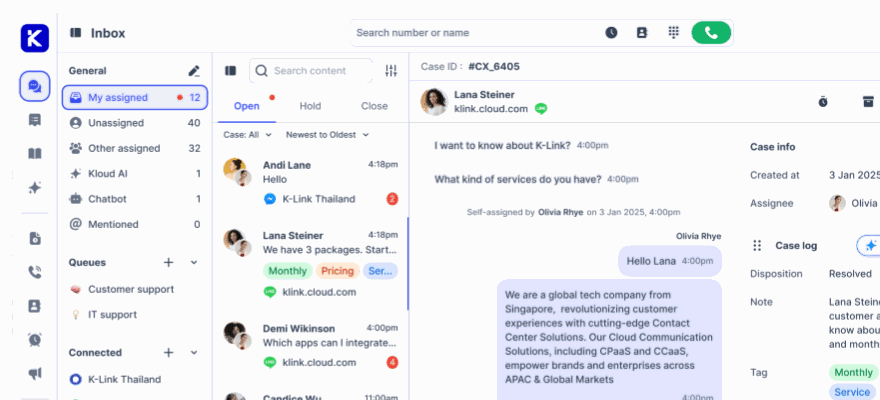
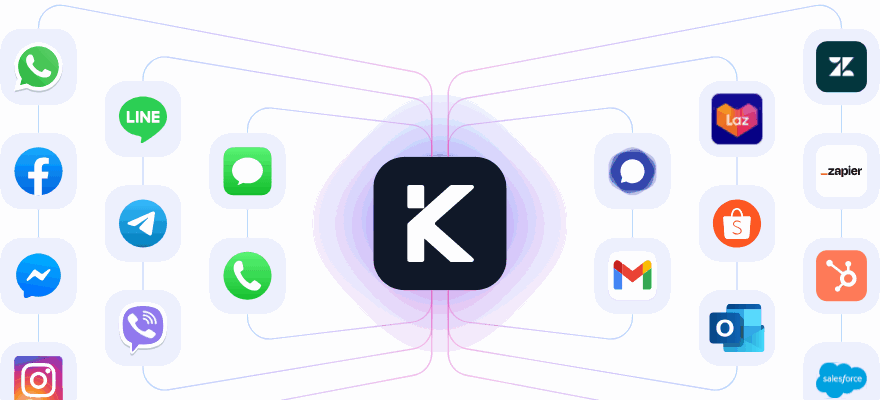
Next, activate the agent across your communication channels. klink.cloud’s Unified Inbox centralizes conversations from live chat, email, SMS, and social media into one dashboard. This allows customers to seamlessly switch between channels - like starting a conversation on Instagram, continuing via email, and finishing on live chat - while the agent retains full context.
To enable channels, navigate to Channels in the klink.cloud dashboard. For each channel:
- For live chat: Embed a widget on your Shopify store by adding a code snippet to your theme.
- For email: Connect your support email address (e.g., support@yourstore.com).
- For SMS: Set up a virtual phone number through klink.cloud.
- For social media: Authorize klink.cloud to access your business accounts on platforms like Facebook and Instagram.
Ensure consistency across all channels by applying a shared style guide. This includes using the same tone, branding elements (like your logo and colors), and signature sign-offs in agent responses.
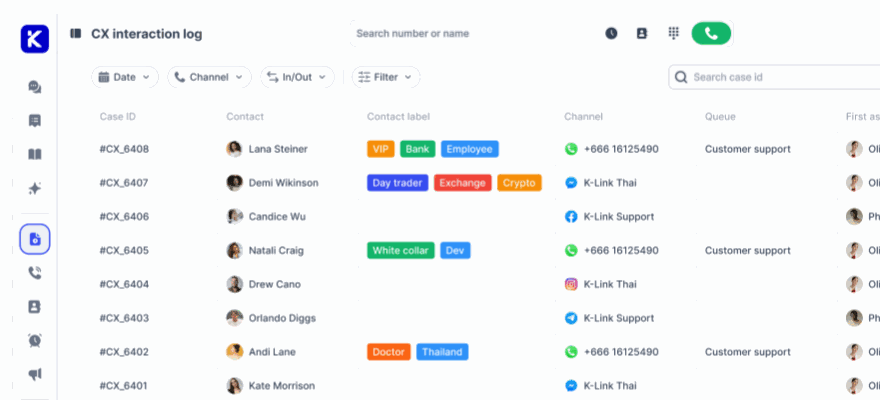
klink.cloud’s Case Management system makes it easy to track all interactions under a single customer profile. This unified history ensures the agent maintains context if a customer switches channels, eliminating the need for them to repeat information.
Test multichannel synchronization by verifying that conversations from all channels appear seamlessly in the dashboard, complete with proper context and customer details. Once everything is connected, you can move on to defining the agent’s response logic.
Configuring Intents and Workflows
Intents are the building blocks of your AI agent’s understanding. Each intent corresponds to a specific type of customer request, while workflows outline the steps the agent takes to address those requests.
Start by identifying the most common questions your Shopify store receives. Typical intents for a first AI agent include:
- Order Status: Helps customers track their orders by asking for an order number or email, retrieving details from Shopify, and providing tracking info with the carrier name and estimated delivery date.
- Returns and Exchanges: Guides customers through the return process by verifying order dates, checking eligibility, and generating return labels if needed.
- Shipping and Delivery: Answers questions about shipping options, costs, and delivery times by referencing your store’s shipping policy.
- Product Information and Fit: Provides details about products, such as materials, sizing, and care instructions, and suggests related items if applicable.
- Discounts and Promotions: Shares information about active sales, discount codes, and loyalty programs.
- Account or Login Help: Assists with account access issues, such as password resets, and escalates security concerns to human agents.
For each intent, list phrases that customers might use to express the request. For example, under "Order Status", include variations like "Where is my order?", "Track my package", or "When will order #1234 arrive?" The more examples you provide, the better the agent can recognize similar requests.
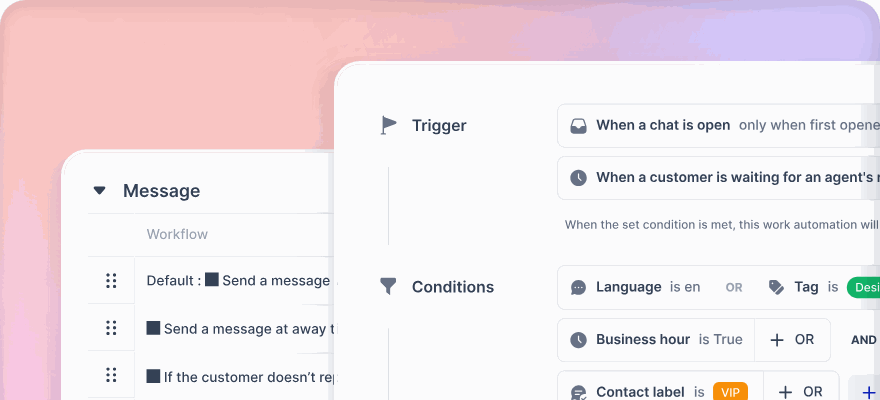
Use klink.cloud’s visual workflow builder to design step-by-step processes for each intent. For instance, the workflow for "Order Status" might include:
- Greet the customer and request their order number or email.
- Call the Shopify API to retrieve order details.
- Verify the order exists.
- Extract fulfillment status and tracking information.
- Format the response with the carrier name, tracking link, and estimated delivery date.
- Ask if the customer needs further assistance.
Add fallback logic for unrecognized inputs or errors, such as escalating to human support if an order number isn’t found. For example, the agent could say, “I couldn’t locate that order. Could you double-check the number or provide the email address used for the purchase?”
Create suggested replies for common questions that don’t require live data. For example, a reusable response to “What’s your return policy?” might be: “We accept returns within 30 days of delivery for unworn items with original tags. Returns are free for US customers, and refunds are processed within 5-7 business days after we receive your return.” Keep these templates concise and update them as needed to reflect your latest policies.
sbb-itb-204ca50
Testing, Deploying, and Optimizing the AI Agent
Once your AI agent is set up, the real work begins. Testing, gradual deployment, and constant fine-tuning are crucial steps to ensure the agent aligns with your customer service goals. Here's how to approach each phase effectively.
Testing the AI Agent
Start by creating a password-protected staging version of your Shopify store and link it to klink.cloud. This setup allows your team to test sensitive actions without risking actual customer data.
Develop a test script that mirrors the customer journey. This should include common scenarios like product searches, order tracking, and policy-related queries. Don’t forget to test ambiguous situations, such as a customer asking, "Where’s my order?" without providing an order number. These cases help evaluate how well the agent handles incomplete information.
Focus on edge cases that could trip up the system. For instance, how does the agent handle a refund request for an already refunded order? Or a request for a discount it’s not authorized to provide? Test scenarios like returns near the 30-day window, exchanges for out-of-stock items, and inquiries about damaged or lost packages. Ensure the agent correctly escalates sensitive issues to human support when needed.
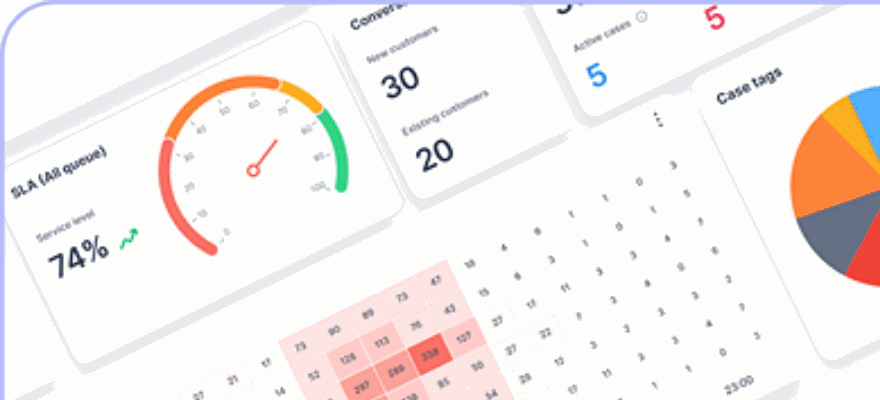
Leverage klink.cloud’s Real-time Analytics & Reports to track performance during testing. Key metrics include response accuracy, how often the agent retrieves correct Shopify data, and whether it maintains your brand’s voice across different inquiries. The Case Management tool is particularly useful for monitoring sentiment and customer satisfaction (CSAT) scores. This helps identify if the agent comes across as robotic, overly casual, or dismissive of customer concerns.
Flag conversations where the agent falters - whether it’s being inaccurate, too verbose, or inconsistent with your brand voice. Use these flagged interactions to refine the agent’s knowledge base. For example, if it struggles with questions about gift wrapping or personalization, add targeted content to address those gaps.
Test the agent across all planned channels, including live chat, email, SMS, and social media. Ensure it provides consistent responses and correctly accesses Shopify data - like order details and inventory - on every platform. Also, confirm that conversations sync seamlessly in klink.cloud’s Unified Inbox, even if customers switch channels mid-conversation.
Once testing is complete, move to a phased rollout to monitor real-world performance.
Deploying the AI Agent Gradually
After thorough testing, roll out the AI agent gradually to ensure a smooth transition. This phased approach helps you monitor performance, address issues quickly, and build trust in its capabilities.
Start with one low-risk channel during business hours. For instance, enable the agent on your website’s live chat from 9:00 AM to 5:00 PM Pacific Time (or Eastern Time, depending on your location). This limited deployment allows your human team to supervise interactions, step in when needed, and identify any configuration issues.
Run live chat during business hours for 1–2 weeks before expanding to 24/7 coverage. This step is where AI shines - managing queries during off-hours, like 2:00 AM on a Sunday. Monitor performance closely during this period, paying attention to how well the agent handles late-night inquiries.
Once confident in its performance, add more channels one at a time. For example, after live chat, introduce email support, then SMS, and finally social media platforms like Facebook Messenger or Instagram DM. This staggered rollout makes it easier to pinpoint channel-specific issues. If escalations spike after adding Instagram, you’ll know the problem lies there, not in the overall setup.
Adjust the rollout timeline as needed. If problems arise, pause and resolve them before moving forward.
Optimizing for Performance and Customer Experience
Deployment is just the beginning. Regular optimization is what transforms your AI agent into a highly effective tool.
Use klink.cloud’s analytics dashboard to track key performance indicators. Set clear goals, such as a 30–40% automation rate within the first month, AI response times under 10 seconds, and CSAT scores above 4.3 out of 5 for AI-handled interactions. These benchmarks help you spot performance dips and areas for improvement.
Analyze escalation patterns to identify gaps in the agent’s knowledge. For example, if it frequently escalates questions about a specific product, update its database with more detailed information. Similarly, refine workflows for edge cases, like return requests near the 30-day window.
Conduct weekly conversation audits, reviewing 20–50 interactions for accuracy, empathy, and adherence to your store’s policies. These reviews can uncover subtle issues, like an agent that provides correct answers but comes across as impersonal or dismissive.
During optimization, you’ll face configuration trade-offs. Here’s a breakdown of common decisions:
| Configuration Aspect | Conservative Approach | Aggressive Approach |
|---|---|---|
| Automation threshold | Requires high confidence before auto-answering; reduces risk but lowers automation. | Allows lower confidence thresholds; increases automation but needs closer monitoring. |
| Response time target | 10–20 seconds for richer, more detailed answers. | Under 5–10 seconds for faster responses, though it may limit depth and personalization. |
| Deployment scope | Starts with live chat during business hours for easier supervision. | Launches across multiple channels or 24/7, requiring robust initial configuration. |
| Action permissions | Informational-only at first; no refunds or discounts. | Full permissions for mature setups, with strict guardrails for sensitive actions. |
Most merchants start conservatively and shift to more aggressive settings as the agent proves its reliability. For example, you might initially restrict the agent to informational tasks, then gradually allow it to process returns under $50.00 while escalating higher-value cases.
Finally, define clear escalation rules to safeguard both customers and your business. Automatically route sensitive requests - like refunds over $100.00, legal issues, or complaints with strong negative sentiment - to human agents. This ensures complex or high-stakes situations are handled with care.
Conclusion and Next Steps
You've successfully set up an AI-powered customer service agent for your Shopify store. This section wraps up your journey so far and highlights practical steps to keep improving your system, ensuring your customer support process stays efficient and effective.
Key Takeaways from the Guide
Here’s a quick recap of what you’ve accomplished and what to focus on as you refine your setup:
- Identify your key use cases: You started by pinpointing the most common customer questions - like product inquiries, order tracking, return policies, and shipping details. These are the areas where your AI agent can make the biggest impact.
- Integrate Shopify with klink.cloud: By syncing your product catalogs, inventory, order data, and customer profiles, you gave your AI agent the ability to provide real-time, accurate answers. For example, it can now check stock availability or retrieve a customer’s order status instantly.
- Set up intents and workflows: Your agent is trained to recognize customer needs and respond appropriately - whether it’s answering sizing questions, processing refunds, or recommending products. It’s also designed to escalate complex issues to a human when needed.
- Test before launching: You thoroughly tested your agent in a staging environment, running it through common and edge-case scenarios. This ensured consistent, accurate responses across all planned channels, including live chat, email, SMS, and social media.
- Roll out gradually: You started small, deploying the agent on a low-risk channel during business hours, then expanded to 24/7 coverage and additional channels over time.
- Monitor key metrics: You tracked metrics like containment rate (how often the AI resolves issues without human help), first response time, customer satisfaction scores, and escalation rate. For Shopify-specific goals, you also monitored conversion rates from AI-assisted sessions and reductions in manual ticket handling.
- Commit to ongoing improvement: Weekly reviews of real conversations allowed you to update training content and refine workflows. Small adjustments - like improving answers to frequent questions or adding product details - helped keep your agent effective and responsive.
This checklist serves as a roadmap for maintaining and enhancing your AI agent, ensuring it continues to support and grow alongside your business.
Planning for Future Improvements
Getting your AI agent up and running is just the beginning. The most successful Shopify merchants treat their AI systems as dynamic tools that evolve over time. For the next 30–90 days, schedule weekly reviews to analyze interactions and update your knowledge base. As you gain confidence, broaden the agent’s responsibilities to include tasks like managing order statuses, handling returns, and offering personalized recommendations.
Once your core agent is stable, you can take things further:
- Automate workflows in klink.cloud: Set up rules to streamline processes. For instance, after resolving a return request, your agent could send a follow-up email asking for a review or offering a discount on the next purchase. These small touches can turn support interactions into opportunities to build loyalty and drive sales.
- Enhance personalization through CRM integration: By linking your CRM, your agent can provide tailored responses. For example, a returning customer asking about a product could receive recommendations based on their purchase history, creating a more personalized shopping experience.
- Add specialized agents for specific tasks: As your business grows, consider creating agents focused on different areas. One could handle post-purchase support like shipment tracking and returns, while another manages loyalty program inquiries or upselling during checkout. With klink.cloud, you can standardize workflows across channels, ensuring consistent tone and branding.
- Experiment with A/B testing: Test different approaches to find what works best. For example, see if a conversational tone increases customer satisfaction more than a formal one, or experiment with various product recommendation strategies to boost average order value.
- Adopt a steady improvement cycle: Make optimization manageable by reviewing conversations, refining intents, updating training data, and retesting regularly. Even one small improvement each week can lead to significant progress over time, transforming your AI agent from a basic FAQ tool into a fully integrated support and sales assistant.
FAQs
What challenges might you face when setting up an AI agent for your Shopify store, and how can you overcome them?
Integrating an AI agent with your Shopify store can present some hurdles, but they’re entirely manageable with a thoughtful approach. One of the first challenges is picking the right AI solution. You'll want to choose a platform that integrates smoothly with Shopify, offers plenty of customization options, and delivers consistent performance.
Another key step is training the AI agent. This means feeding it accurate product information, store policies, FAQs, and historical support data so it can provide meaningful and accurate answers to customer inquiries.
Then there’s the task of connecting the AI agent to Shopify and your helpdesk system. This connection ensures the agent can access real-time data to handle customer interactions quickly and effectively.
Lastly, thorough testing before launch is critical. This helps you identify any weak spots in the agent’s knowledge and ensures it’s ready to offer helpful, accurate responses. By addressing these steps methodically, you can set up a reliable AI-powered customer support system that enhances the shopping experience.
How can I make sure my AI agent reflects my brand's voice and delivers a personalized experience?
To make sure your AI agent reflects your brand's identity and delivers a tailored experience, begin by defining its tone, language, and personality to align with your brand. Set up clear guidelines for how the agent should interact with customers, including specific phrases and responses that fit your style.
Take advantage of customer data to make interactions more personal. For instance, you can use details like purchase history or browsing habits to suggest relevant recommendations or solutions. Regularly evaluate and adjust the agent's performance to ensure it consistently meets your brand's standards and keeps up with customer expectations.
How can I improve my AI agent's performance after setting it up?
To ensure your AI agent delivers optimal performance, it's important to periodically review its interactions with customers. Look for patterns or areas where the responses could be improved. This might involve refining how the agent replies, updating its training data, or tweaking settings to align with customer feedback and your business's changing priorities.
Keep an eye on key metrics like response accuracy, resolution time, and customer satisfaction levels. These measurements provide valuable insights that can guide small but meaningful adjustments. By doing this, you can help your AI agent consistently meet customer expectations while supporting your business goals effectively.