Automate Order Tracking, FAQs, and Upsells on WhatsApp for Your Shopify Store
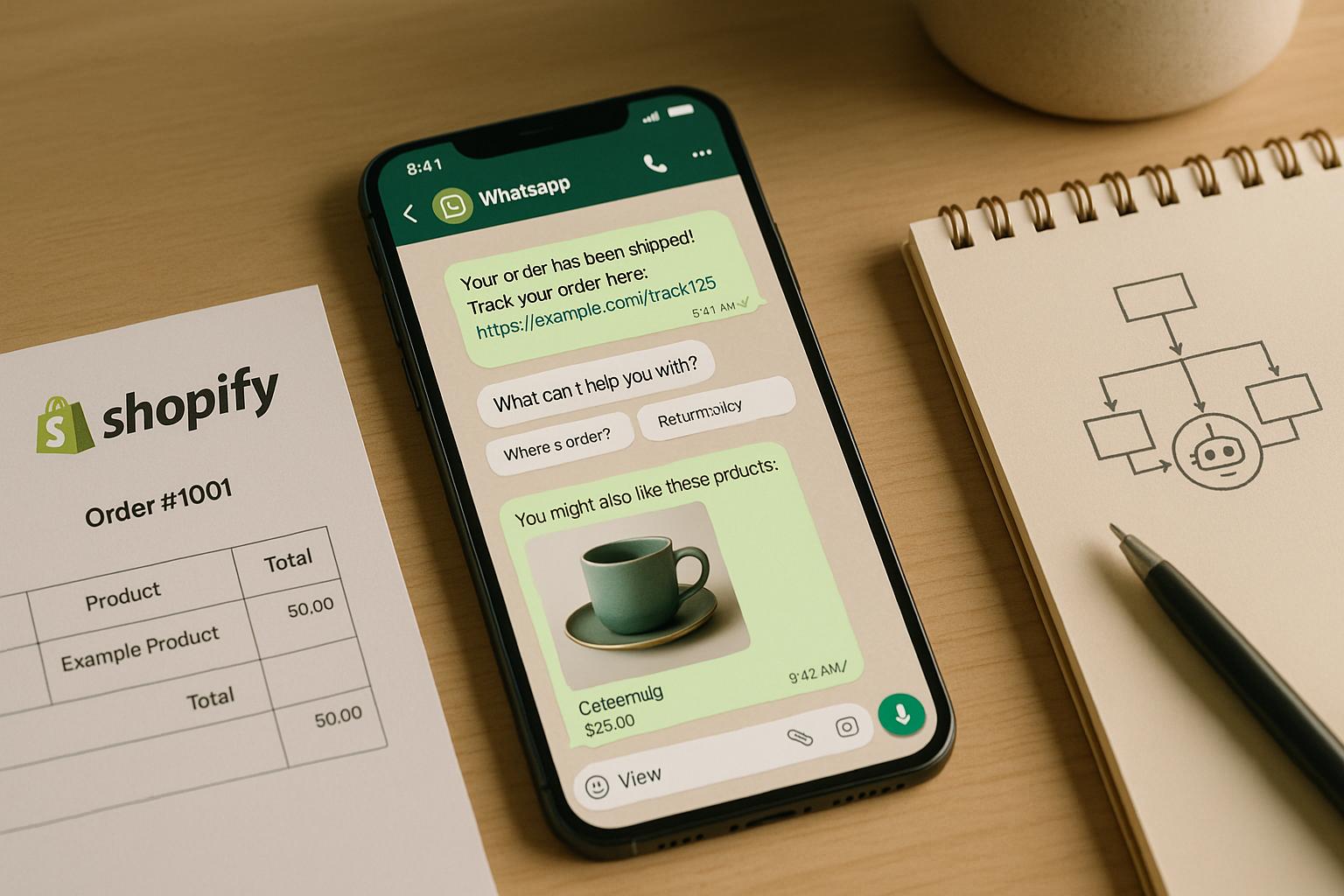
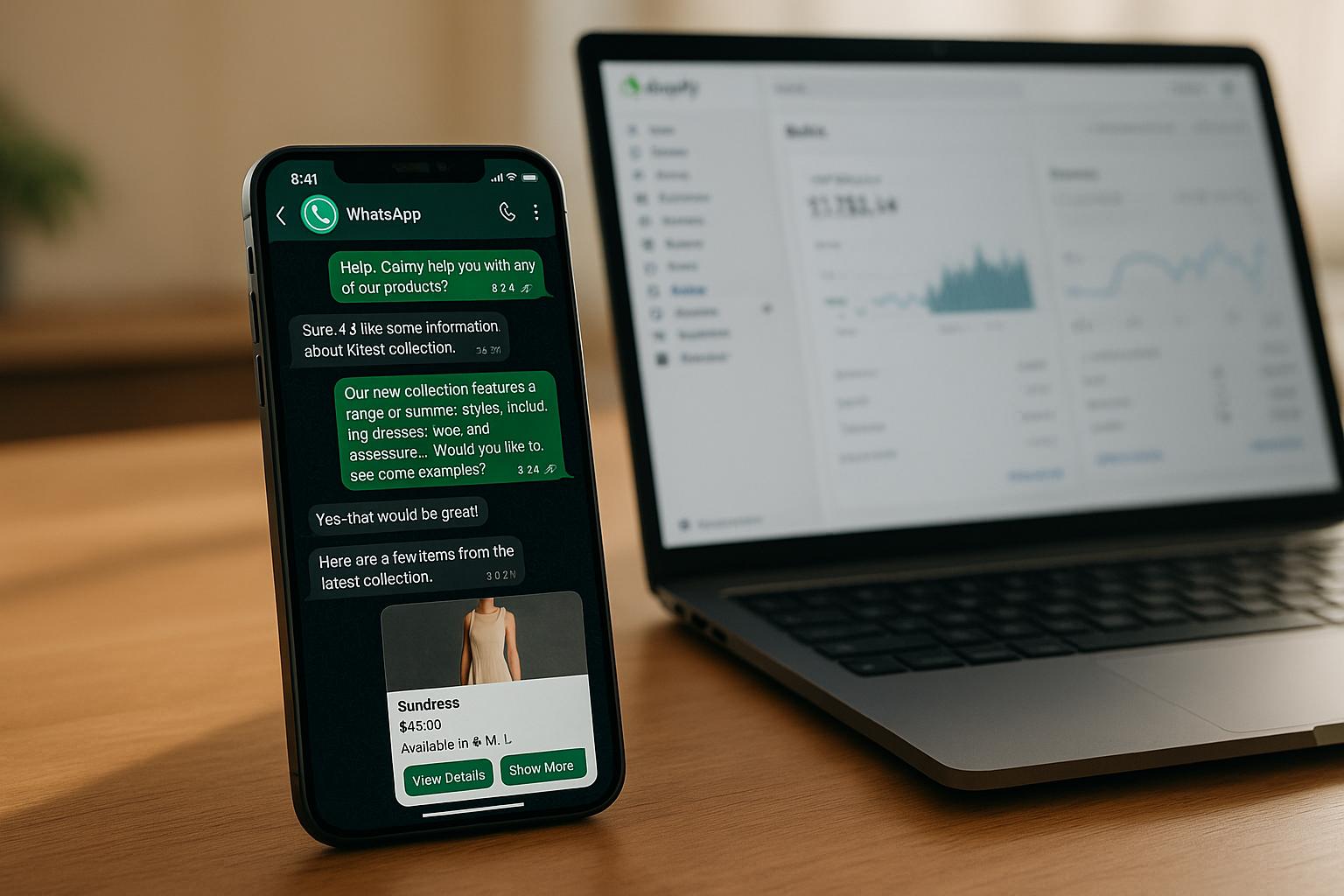
Running a Shopify store can be time-consuming, especially when managing repetitive customer inquiries like "Where's my order?" or "What's your return policy?" Automating these tasks through WhatsApp can save time, improve customer satisfaction, and even increase sales. With WhatsApp's 98% open rate and reply rates between 45–60%, it’s one of the most effective communication tools for e-commerce businesses.
Here’s what you can do with WhatsApp automation for your Shopify store:
- Order Tracking: Automate notifications for order confirmation, shipping updates, and delivery status.
- FAQs: Set up instant responses for common questions like shipping policies or tracking inquiries.
- Upsells: Send personalized product recommendations and abandoned cart reminders to boost conversions.
Using platforms like klink.cloud, you can integrate WhatsApp with Shopify in minutes - no coding required. Once connected, you can streamline customer communication, reduce support tickets, and create targeted upsell opportunities based on customer behavior.
This guide walks you through setting up WhatsApp automation, from integration to testing, and explores how to use it for tracking, FAQs, and personalized upsells. By the end, you'll have a system that saves time, improves customer service, and drives more revenue.
Use WhatsApp for Support, Marketing & Automation in Shopify
Setting Up WhatsApp Integration with Shopify
You can easily connect your Shopify store to WhatsApp using klink.cloud - no coding required. Most U.S.-based merchants complete the setup in just a few minutes.
What You Need Before Starting
Before diving into the integration process, make sure you have the following:
- An active Shopify store with admin access to install apps and manage data permissions.
- A dedicated WhatsApp Business number in the +1 format, separate from your personal WhatsApp account.
- A verified WhatsApp Business account through Meta Business Manager to enable automated messaging.
- An active klink.cloud account on a suitable plan (starting at $23 per user/month for small teams).
- Approved WhatsApp message templates and a confirmed messaging limit tier that matches your expected volume.
- A completed WhatsApp Business profile with your business name, U.S. support number, and local business hours (PT or ET).
When setting up your WhatsApp Business profile, use a clear and concise business name along with a brief description. This reassures customers that they'll receive official updates and support - not spam. For example, include details like your support hours and order update notifications.
Connecting Shopify to WhatsApp via klink.cloud
To connect your Shopify store with WhatsApp, follow these steps:
-
Log into klink.cloud
Head to the integrations section in your klink.cloud account. Select WhatsApp and connect your WhatsApp Business account by verifying your phone number. WhatsApp will send you a code via SMS or voice call for verification. -
Add klink.cloud to Shopify
Go to the Shopify App Store and search for the klink.cloud app. Click "Add app" and authorize access to your store's orders, customers, and fulfillment data. These permissions are crucial for automation. -
Map Shopify to WhatsApp
Return to your klink.cloud dashboard and ensure your Shopify store is correctly linked to your WhatsApp Business account. -
Set Up Webhooks
Configure webhooks for key events like order creation, payment success, fulfillment updates, shipment notifications, order cancellations, and refunds. In many cases, klink.cloud will create these webhooks automatically. If manual setup is needed, go to Shopify Settings → Notifications or Settings → Apps and point the event topics to the callback URL provided by klink.cloud. -
Verify Messaging Setup
Ensure your WhatsApp Business number is fully verified and your messaging limit tier can handle the expected message volume. Confirm that utility templates for order confirmations and shipping updates are approved. -
Standardize Phone Numbers
Use E.164 formatting for U.S. numbers (e.g., +1). In klink.cloud, set rules to send messages only to numbers with valid formatting and explicit opt-in. Update Shopify’s checkout process to collect WhatsApp consent with clear language like: “Send me order updates via WhatsApp” and a checkbox.
Once these steps are complete, your store will be connected, and webhooks will be active. You’re now ready to test the integration.
Testing Your Integration
Testing ensures everything works smoothly before you go live. Here’s how to validate your setup:
-
Create a Test Product
Add a test product to your Shopify store, priced at $1.00 or $5.00. Place an order using your own phone number (with WhatsApp installed and opted in). Use a real payment method to simulate a genuine transaction. -
Check Order Confirmation Messages
After placing the order, you should receive a WhatsApp message confirming your order. It should include your name, order number, and the total amount in USD. Verify that the message formatting is clean and professional, with no missing details or broken links. -
Test Fulfillment Messages
Mark the order as fulfilled in Shopify and add a tracking number. You should receive another WhatsApp message with shipping confirmation and a tracking link. Test the link to ensure it directs to the correct tracking page. -
Troubleshoot Issues
If messages don’t arrive, double-check your phone number, WhatsApp template approvals, app permissions, and webhook setup. Use klink.cloud’s error logs to identify issues like rate limits, template mismatches, or authentication errors. -
Simulate the Full Order Cycle
Walk through the entire process: place an order, fulfill it, and process a refund. Confirm that all related WhatsApp messages are sent correctly. -
Verify Opt-Out Instructions
Ensure that opt-out instructions, like “Reply STOP to unsubscribe,” are clear and easy to understand.
Before launching, confirm that test messages are delivered consistently, templates use proper U.S. English, and order totals are displayed in USD. Make sure your team knows how to incorporate WhatsApp into your existing support workflows.
Once testing is complete and everything runs smoothly, you’re ready to automate order tracking with confidence.
Automating Order Tracking Notifications on WhatsApp
Automating WhatsApp notifications for order tracking can simplify customer communication while making your Shopify operations more efficient. With your integration set up, you can configure WhatsApp messages to keep customers informed at every step of their order journey. These updates not only reassure customers but also align with the clear communication standards that U.S. shoppers expect.
Shopify Events That Trigger Order Updates
Shopify generates specific events throughout the order process. These events are key moments when customers want updates to ensure their order is on track. The most important events to connect with WhatsApp notifications are:
- Order placed
- Payment confirmed
- Order fulfilled/shipped
- Out-for-delivery (if your logistics app supports this)
- Delivered
For example, the order created event triggers as soon as a customer completes checkout, making it the perfect time to send a confirmation message. The payment captured event follows when the payment processor approves the transaction, confirming the funds have been received. The order fulfilled or shipment created event occurs when the order is marked as shipped in Shopify, complete with a tracking number. If available, the out-for-delivery event signals the package is nearing its destination, and the delivered event confirms the package has been received.
Sending clear updates at each stage helps reduce "where is my order?" inquiries while reassuring customers that their purchase is progressing smoothly. By using klink.cloud, Shopify events (like "order fulfilled") can trigger webhooks that automatically map order data into pre-approved WhatsApp templates. Once set up, this process runs on its own, ensuring every qualifying order sends the right notification without manual intervention.
Creating Message Templates in klink.cloud
When sending messages outside WhatsApp’s 24-hour service window, you’ll need to use pre-approved templates. These templates, categorized as "utility" or "transactional", must be registered through Meta's WhatsApp Business Platform.
In klink.cloud, you can create templates by outlining the message structure and using placeholders for dynamic data from Shopify. Include details like the customer’s first name, order number, total amount in USD, key items, tracking link, and the expected delivery date (if available). Adding information such as the shipping city/state, carrier name (like USPS, UPS, or FedEx), and a short, brand-appropriate note makes the message feel personalized and accurate.
For U.S. formatting, stick to conventions like $49.99, dates like Dec 15, 2025, and 12-hour time with AM/PM (e.g., 2:30 PM). Keep messages concise so they’re easy for customers to read and meet WhatsApp's approval guidelines.
Here are some examples for different stages:
Order placed template:
"Hi {{first_name}}, thanks for your order! Your order #{{order_number}} totaling ${{order_total}} is confirmed. We'll ship it by {{ship_date}}. Track your order: {{tracking_link}}"
Shipped template:
"Good news, {{first_name}}! Your order #{{order_number}} has shipped via {{carrier}}. Expected delivery: {{delivery_date}}, between 2:00 PM and 6:00 PM. Track it here: {{tracking_link}}"
Delivered template:
"Your order #{{order_number}} was delivered to {{city}}, {{state}} on {{delivery_date}}. If anything seems wrong, just reply and we'll help!"
To create a template, go to the message templates section in klink.cloud and draft a new template for each event. Select the "utility" category to indicate it’s a transactional message. Use placeholders like {{first_name}} for dynamic data, and submit the template for approval. WhatsApp typically reviews submissions within a few hours to a day. Once approved, link each template to its corresponding Shopify event in your automation workflow.
Avoid promotional language in these updates. Adding phrases like "Shop our sale" or "Get 20% off your next order" can lead to template rejections or flags. Stick to order status and delivery details to ensure compliance.
Following WhatsApp Rules and Adding Personal Details
Before sending notifications, ensure your templates comply with WhatsApp’s opt-in and content guidelines. Customers must actively consent to receive these updates, such as by checking a box at checkout that says, "Send me order updates via WhatsApp." Sending messages without opt-in can lead to them being blocked or marked as spam.
Templates must also be approved by Meta to ensure they follow WhatsApp policies. Focus on transactional content - no promotional pitches or unrelated information. Include a clear way for customers to reach support, such as "Reply if you need help" or "Contact us at support@yourstore.com."
When setting up templates in klink.cloud, map Shopify fields to placeholders. For instance, link customer.first_name to {{first_name}}, order.name to {{order_number}}, order.total_price to {{order_total}}, and fulfillment.tracking_url to {{tracking_link}}. This ensures the system automatically pulls the correct data for each message.
Test your automation with a small group before rolling it out to all customers. Create test orders using your own phone number or invite a few loyal customers to participate. Confirm that each event triggers the appropriate WhatsApp message with accurate details. Test tracking links on both Android and iOS, and review logs in klink.cloud to catch any errors. Once everything works seamlessly, enable the automation for all orders.
After launching, monitor key metrics like message delivery and read rates, click-through rates on tracking links, and the reduction in "where is my order?" inquiries. You can also track repeat-purchase rates and customer satisfaction scores from those receiving WhatsApp updates. Real-time, reliable notifications often lead to happier customers and more repeat business in the U.S. e-commerce market.
Automating FAQ Responses and Support Routing
Automating responses to common customer questions on WhatsApp can significantly ease the workload for your support team while speeding up response times. By setting up a system to handle simple queries and escalate more complex issues, you can provide a seamless experience for your customers.
Setting Up Automated FAQ Workflows
To begin, identify the most frequent questions your customers ask. Review recent WhatsApp chats, email tickets, and other support channels to spot recurring themes. For many US-based Shopify stores, common questions often fall into categories like shipping details, return and refund policies, order tracking, payment options, and discount codes. Once you’ve pinpointed the top 10–20 questions, organize them into thematic workflows.
For example, in klink.cloud, you can create distinct workflows for each major topic. A "Shipping & Delivery" workflow might address delivery times, shipping costs, and carrier options. A "Returns & Exchanges" workflow could cover return windows, refund timelines, and return instructions. Meanwhile, an "Order Help" workflow can provide real-time order tracking and status updates. Grouping related questions this way helps customers find answers quickly while keeping your system efficient.
Each workflow should use keyword triggers to understand customer inquiries. For instance, if someone types "where is my order", "tracking", or "delivery", the bot can direct them to the order status workflow. Similarly, keywords like "return", "refund", or "exchange" can route customers to the returns workflow. To make navigation even easier, include quick-reply buttons at the start of conversations with options like "Track my order", "Shipping info", "Returns", or "Payment questions."
Here’s an example of how you might respond to a shipping question:
"We ship all orders within 1–2 business days via USPS or UPS. Standard delivery takes 3–5 business days. Orders over $50 ship free!"
Follow this with a button or link for additional details, such as "View full shipping policy" or "Track your order." Ensure your responses align with your Shopify store’s policies and use US-specific conventions - display prices in USD (e.g., $24.99), use 12-hour time (e.g., "9:00 AM–6:00 PM EST"), and reference imperial measurements.
For order-status inquiries, integrate your workflow with Shopify so the bot can access real-time data. When a customer provides their order number, klink.cloud can display the current status, tracking number, and estimated delivery date. For shipped orders, include a direct tracking link and mention the carrier:
"Your order shipped via UPS on Dec 3, 2025. Expected delivery: Dec 6, 2025, by 8:00 PM. Track it here: [tracking link]."
Before launching, thoroughly test each workflow. Create test orders using your own phone number or ask a few trusted customers to try it out. Confirm that keyword triggers work as intended, quick-reply buttons lead to the correct answers, and Shopify data is displayed accurately. If customers seem confused by certain responses or frequently ask follow-up questions, refine your messaging or add clarification steps.
Directing Complex Questions to Live Agents
While automation can handle many FAQs, some issues require a human touch. Problems like damaged items, payment disputes, partial refunds, chargebacks, or account-specific concerns often need the judgment and empathy of a live agent. Your system should recognize these situations and transfer the conversation appropriately.
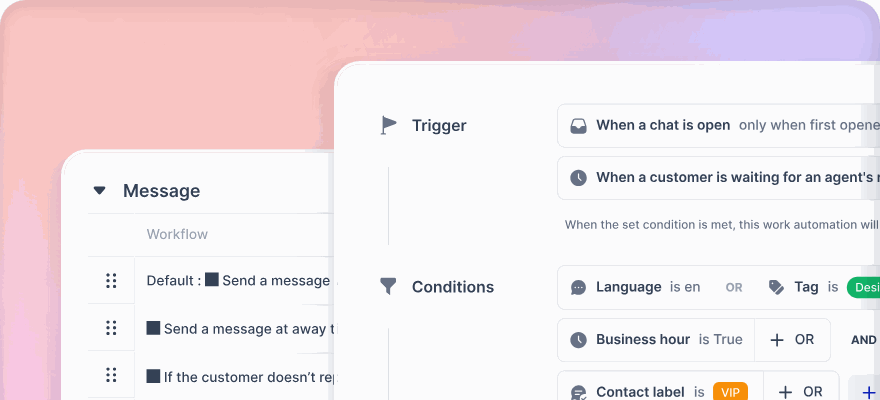
In klink.cloud, set up escalation rules to automatically route these cases to your shared inbox. For example, if a customer types keywords like "agent", "representative", "manager", "complaint", "angry", or "fraud", the system can immediately transfer the conversation. Escalation can also be triggered by behavior - if the bot fails to resolve an issue after two clarification attempts or if the customer repeatedly selects "I still need help" after viewing an FAQ.
When routing conversations, assign them to the right team based on the topic. For instance, send return inquiries about damaged items to the Returns Specialist queue, billing issues to the "Payments & Billing" team, and high-value orders or VIP customers to senior agents for priority handling.
The handoff message is crucial. When transferring a customer to a live agent, reassure them with a clear explanation and timeline:
"I'm connecting you with a support specialist who can help with this. You'll hear back within 15 minutes during business hours (9:00 AM–6:00 PM EST)."
Internally, klink.cloud attaches tags and context notes to the conversation, so agents see all relevant details - like the customer’s order number and specific issue - allowing them to respond efficiently.
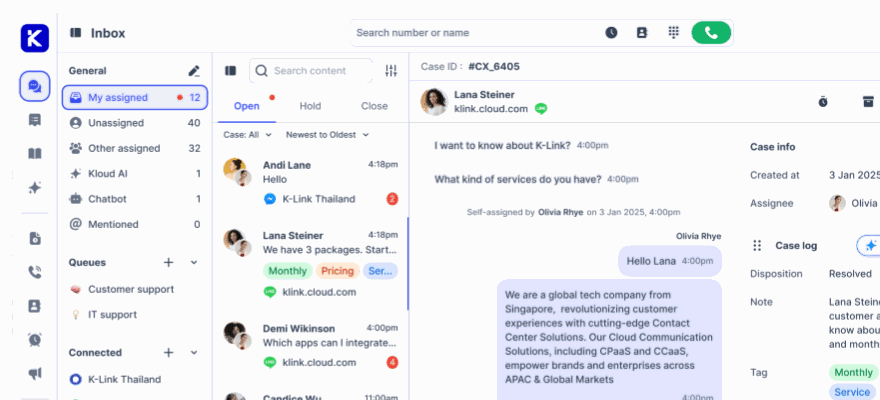
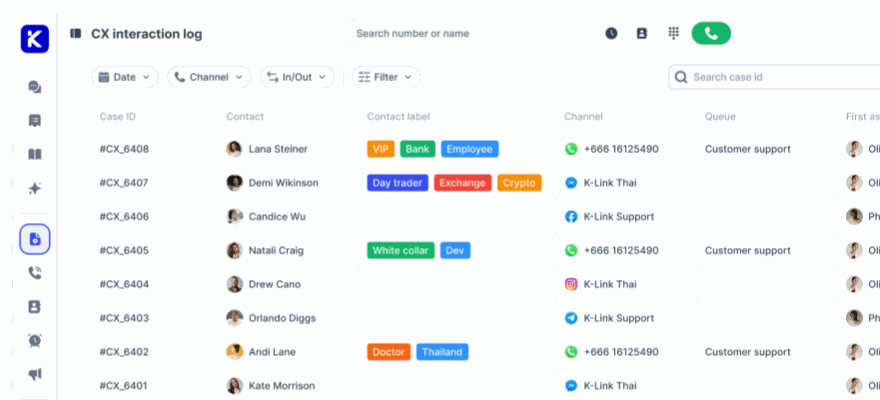
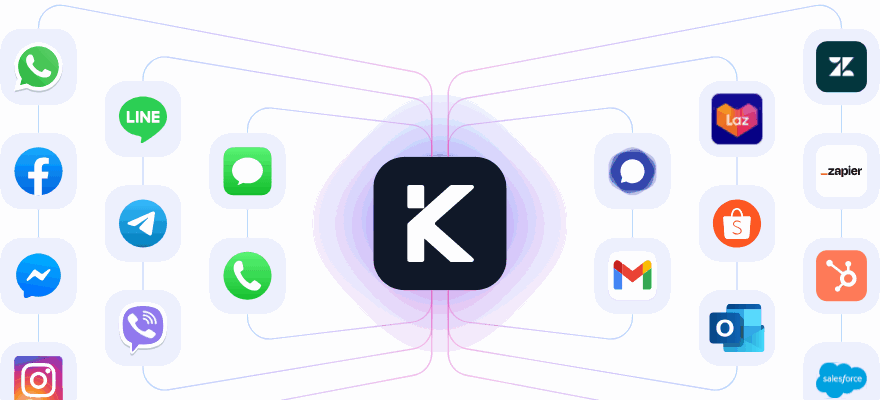
klink.cloud’s Unified Inbox simplifies this process by centralizing all customer interactions - WhatsApp, Messenger, email, live chat, and phone calls - into one dashboard. Agents can manage WhatsApp conversations alongside other channels without switching tools, ensuring they have the full interaction history and can seamlessly continue where the automation left off.
Configure business hours and auto-responses to set clear expectations for customers. For example, if someone messages at 10:00 PM EST, the bot might reply:
"Thanks for reaching out! Our support team is available 9:00 AM–6:00 PM EST, Monday–Friday. We'll respond first thing in the morning. In the meantime, you can track your order here: [link]."
Adapting Support for US Customers
US customers have specific expectations when it comes to language, measurements, and service standards. Tailoring your FAQ automation to meet these preferences helps build trust and ensures a smooth experience.
Use US English spelling and phrasing in your responses - write "color" instead of "colour", "canceled" instead of "cancelled", and "check" instead of "cheque." These small details show that your business understands the US market.
When discussing shipping, reference familiar carriers like USPS, UPS, FedEx, and DHL, and provide delivery windows in business days (e.g., "Standard shipping takes 3–5 business days" or "Express delivery arrives in 1–2 business days"). If you offer free shipping, clearly state the threshold in USD (e.g., "Free shipping on all orders over $50 to the continental US").
For returns, specify the return window (commonly 30 days from delivery for US e-commerce stores) and note any exceptions for final sale items. Explain whether customers need to cover return shipping costs or if you provide prepaid labels. Adjust responses for locations like Alaska, Hawaii, or APO/FPO addresses as needed.
With klink.cloud, you can configure customer profile routing to ensure US-based customers receive responses tailored to their region. Auto-assignment rules based on location, language, or customer type ensure that US customers see prices in USD, measurements in imperial units, and references to US-specific shipping and tax details. By integrating these settings into your workflows, you can deliver a consistent, localized experience for your audience.
sbb-itb-204ca50
Building Personalized Upsell and Post-Purchase Flows
Once you've set up automated order updates and responsive FAQs, you can take things further by using WhatsApp to boost revenue with personalized upsell flows. By leveraging purchase behavior, you can trigger targeted offers that feel tailored and helpful, not pushy. With WhatsApp's high engagement rates for both transactional and promotional messages, and Shopify's rich customer data, the possibilities for creating meaningful connections are huge.
Sending Upsell Messages Based on Customer Actions
To make the most of upsell opportunities, focus on key Shopify events that naturally align with customer buying patterns. These triggers can include order placement, fulfillment, delivery, or even a set time after delivery. For example, immediately after a customer places an order, you could suggest a complementary product - like a phone case for a new smartphone or a travel-size version of a skincare product they just purchased. This approach works because the customer is already in a buying mindset, making the additional purchase feel seamless.
Once the product is delivered, the focus shifts to customer satisfaction and potential reorders. After waiting a reasonable amount of time - usually 3 to 14 days, depending on the product - you can send a follow-up message to check in on their experience. If the feedback is positive or if no issues are raised, you can introduce a cross-sell or bundle offer. For instance, a skincare brand might send a refill reminder 25–30 days post-delivery, while a coffee subscription service might reach out after two weeks.
Using tools like klink.cloud, you can automate these flows based on Shopify events. For example, when an order status changes to "delivered", you can set a delay (e.g., three days) before sending a message with usage tips and a relevant product recommendation. You can also customize the workflow to branch out based on customer responses. If they respond positively, you might send a loyalty discount or referral incentive; if they don't engage, a gentle reminder could follow.
Shopify's customer data allows you to personalize these messages even further. You can recommend complementary products based on past purchases, and klink.cloud can dynamically include product details - like names, images, and prices in USD - directly in your WhatsApp templates. This level of personalization makes each message feel relevant and specific to the customer.
It’s also essential to exclude certain orders from receiving upsell messages. For instance, you’ll want to skip refunded orders, high-support-risk cases, or customers who have opted out. This ensures your offers come across as thoughtful, not intrusive.
Customizing Offers for US Customers
To make your upsell flows resonate with US customers, focus on value-driven incentives like dollar savings, free shipping thresholds, and time-limited offers tied to spending tiers.
Segment your audience based on their spending habits. For instance:
- Customers spending under $50 might receive suggestions for small add-ons like accessories or travel-size items.
- Those spending between $50 and $150 could be offered bundles designed to help them qualify for free shipping (typically around $50–$75 for US stores).
- High spenders might enjoy VIP perks like early access to new products, exclusive bundles, or loyalty rewards.
With klink.cloud, you can route customers into these segments using Shopify's customer tags or total spend data. For first-time buyers, keep the messaging light and educational - offering setup guides, styling tips, or product usage ideas - before introducing related products. For repeat customers, who already trust your brand, you can be more direct with offers like subscriptions, bundles, or premium items.
To align with US shopping preferences, use familiar formatting and reference well-known shipping carriers like USPS, UPS, or FedEx. If you're offering free shipping, clearly state the threshold (e.g., "Spend $15 more to qualify for free shipping" or "Orders over $50 ship free").
Timing is also key. Schedule upsell messages for late morning or early evening in US time zones, and for post-delivery upsells, consider typical US shipping times - 3–5 business days for standard shipping and 1–2 days for express.
Respecting Privacy and Focusing on Value
US shoppers value their privacy and prefer brands that avoid aggressive sales tactics. Your upsell flows should feel like an added service, not a constant sales pitch.
First, ensure customers have opted in to receive WhatsApp messages. Tools like klink.cloud can help you track opt-in status and automatically exclude those who haven’t consented.
To prevent message fatigue, limit how often you send upsell messages. A good rule of thumb is no more than one upsell message per week per customer, and even less if engagement is low. With klink.cloud, you can set conditions to check when a customer last received a message and pause further communication if needed.
When crafting your upsell messages, emphasize tangible benefits. Instead of a hard sell like "Buy this now", explain how the product can enhance their experience - whether it's improving results, saving time, or offering a clear discount. For example, you could highlight offers like "Buy 3, save $12" or "Bundle these items for a 19% discount" to make the value crystal clear.
Always provide an easy way for customers to opt out, such as including a line like "Reply STOP to unsubscribe." Klink.cloud can handle opt-out requests automatically, updating customer preferences accordingly.
Finally, avoid using overly personal data in your upsell logic. Stick to relevant information like purchase history, spending levels, and product categories to keep the messaging focused on enhancing their existing experience. Monitor customer responses to your upsell efforts and adjust your strategy based on metrics like open rates, click-through rates, conversions, and opt-outs. This approach ensures your upsell flows remain effective and well-received.
Monitoring and Improving WhatsApp Automation Performance
Automating tasks like order tracking, FAQs, and upsells is just the beginning. To make the most of your WhatsApp automation, you need to regularly track its performance. This means checking if messages are being delivered, links are being clicked, and notifications are sent at the right frequency. Using the right metrics and tools, you can quickly pinpoint what’s working well and what needs adjustment. This phase builds on earlier integration and automation steps, ensuring your system keeps improving.
Performance Metrics to Track
Focus on a few key metrics that directly impact customer experience and sales. For example, when monitoring order tracking notifications, keep an eye on message delivery rate and read rate. WhatsApp typically boasts open rates exceeding 90%, far higher than the 20–30% often seen with e-commerce emails. If your delivery rate drops below 85%, it might signal issues like incorrectly formatted phone numbers or customers who haven’t opted in. Also, check the number of "Where is my order?" tickets before and after enabling WhatsApp updates - seeing a 30–50% drop means your shipping notifications are reducing customer inquiries effectively.
For FAQ and support automations, track metrics like first response time, bot resolution rate (the percentage of queries resolved without human intervention), and escalation rate. Aiming for under five minutes for average response times during U.S. business hours and a bot resolution rate of around 60% for common questions is a good benchmark. If escalation rates are high, it may mean your FAQ responses need clearer language or broader coverage.
When analyzing upsell and post-purchase flows, focus on click-through rates (CTR), conversion rates, and revenue per message. Well-targeted WhatsApp campaigns can often achieve CTRs of 15–25%, significantly better than email campaigns. Also, track how much your average order value increases, monitor incremental revenue, and ensure low opt-out rates (ideally under 2% per campaign) to confirm your upsell messages are relevant and respectful.
Beyond workflow-specific metrics, keep an eye on reply rates, time to first response for chats that require live agents, and customer satisfaction (CSAT) scores. These broader engagement signals reveal whether your WhatsApp strategy is building trust or causing frustration.
Using klink.cloud's Reporting Tools
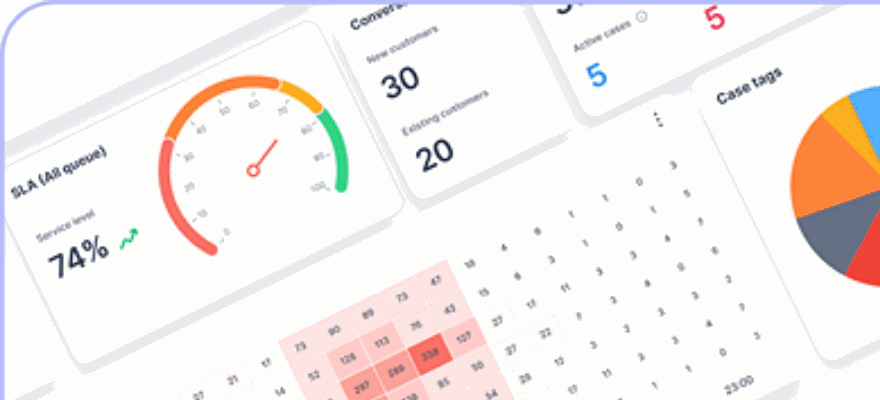
To streamline performance tracking, use advanced tools like klink.cloud’s real-time analytics dashboard. This platform provides instant insights into customer interactions, agent performance, and operational metrics across all communication channels, including WhatsApp. Key data points include first response time, resolution time, waiting time, customer sentiment, and CSAT, all organized under a single customer profile.
Review these reports weekly, filtering data by flow (e.g., "Order shipped", "Out for delivery", or "Delivered + review request"), audience type (new vs. returning customers, or U.S.-specific segments), order value (e.g., under $50, $50–$150, $150+), product category, and customer lifecycle stage (e.g., new customer, returning, VIP). You can also segment by event type (like shipping updates or upsell offers) and timeframe (such as key U.S. shopping periods like Black Friday or Cyber Monday) to identify seasonal trends and refine future campaigns.
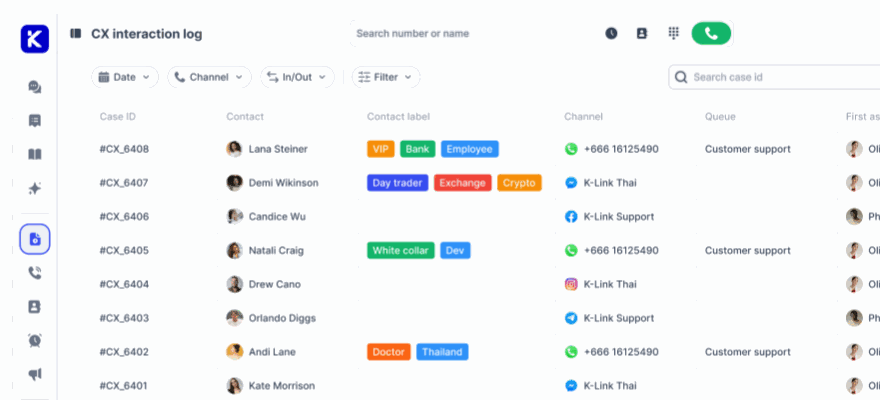
Klink.cloud’s Case Management feature is particularly helpful for evaluating support automation. It tracks every customer interaction and provides detailed metrics on how quickly and effectively issues are resolved. Recurring patterns, such as specific FAQ topics frequently escalating to live agents or confusion around certain order statuses, highlight areas that need attention.
"Since adopting klink.cloud, we've seen a massive improvement in our response times. Our customers are happier, and our agents are more efficient than ever." - Sarah Lee, Head of Contact Center, Horizon Solutions
Adjusting Workflows Based on Data
After identifying underperforming workflows in your reports, make targeted changes to templates, personalization rules, and message timing. For instance, if click-through or response rates are low, simplify your message templates. Remove unnecessary details, add a clear call-to-action, and personalize the message with details like the customer’s first name, product names, or order status to make it more engaging.
If analytics show that customers are most active during specific times - like mid-morning (10:00 AM–12:00 PM) or early evening (6:00 PM–8:00 PM) in Eastern and Pacific Time - schedule your messages accordingly. Avoid sending promotional content late at night or too early in the morning to minimize opt-outs and ensure your messages are well-received.
For low delivery rates, revisit how phone numbers are collected during checkout. If response or opt-out rates are problematic, it could mean your messages aren’t hitting the right tone, timing, or frequency. Adjust these elements based on customer preferences.
When FAQ workflows show high escalation rates, analyze the most common questions being redirected to live agents. Improve automated responses for these topics and fine-tune routing rules in klink.cloud to assign conversations to the right agents based on customer details (like language preference or VIP status) or keywords. This can improve both speed and efficiency.
Use data from major U.S. shopping events (e.g., Memorial Day, July 4th, Labor Day, Black Friday) to identify your top-performing automations and refine them for future campaigns. A simple experimentation framework can help: focus on improving one or two metrics each month, such as FAQ self-service rates or upsell conversions. Test A/B variations of message templates or timing, compare metrics like CTR and opt-out rates, and implement the best-performing version across your audience.
Finally, combine quantitative data with qualitative feedback from customers and agents. Comments like "What’s this about?" in response to an upsell message can signal that your template lacks clarity, while reports of repetitive messages may mean you need to tweak triggers or reduce frequency. Consistently manage opt-ins and use customer insights to fine-tune your automation strategy, ensuring it aligns with their needs while driving better results.
Conclusion
Using WhatsApp to automate order tracking, FAQ responses, and upsells eliminates the frustration of long email waits and support delays. Instead, it delivers instant updates on a platform your customers already know and prefer. This approach not only speeds up communication but also opens up new revenue streams with timely, personalized upsell messages that often outperform traditional email campaigns.
For smaller businesses, WhatsApp automation acts as a cost-effective support solution, eliminating the need for additional staff. Larger businesses can use it to create scalable workflows that ensure consistent customer experiences, even across different product lines and time zones. The result? Fewer support tickets, happier customers, and more repeat purchases, all thanks to a communication system that leaves customers feeling informed and appreciated. This efficiency makes integration with a centralized platform a natural next step.
klink.cloud offers prebuilt, customizable workflows that centralize all customer interactions and provide real-time analytics. With its unified inbox, you can track key metrics like delivery rates, click-throughs, and conversions, helping you fine-tune your strategy over time. This guide has highlighted how such a streamlined system can maximize the benefits of WhatsApp automation for customer service.
Getting started is simple. Link WhatsApp to your Shopify store using klink.cloud, enable essential order-tracking flows for shipped and delivered statuses, set up a basic FAQ bot to handle common questions, and add a couple of upsell messages for your top-selling products. These straightforward steps allow you to see quick results and build confidence before expanding into more advanced workflows, like abandoned cart recovery or campaigns targeting VIP customers. As you implement these features, make sure your setup aligns with local standards.
For U.S. customers, configure settings to use USD, MM/DD/YYYY date formats, and maintain a reasonable messaging frequency. Customers value proactive updates and relevant recommendations, but they’ll quickly tune out pushy promotions. By focusing on timely shipping alerts, useful answers, and personalized offers based on purchase history, you’ll create a communication channel that continually delivers value - whether it’s during a campaign, a product launch, or a holiday sale.
Investing in WhatsApp automation is investing in stronger, scalable customer relationships. Merchants who adopt tools like klink.cloud now will gain the ability to personalize at scale, gather actionable insights, and refine workflows based on real performance data. As outlined in this guide, starting early with these workflows not only saves time and resources but also drives long-term growth and customer loyalty.
FAQs
How can WhatsApp automation enhance customer satisfaction and boost sales for my Shopify store?
WhatsApp automation takes customer interactions to the next level by simplifying and speeding up key processes. It handles tasks like sending automated order updates, reminding customers about abandoned carts, and instantly answering common questions. The result? Faster service and a more seamless shopping experience for your customers.
But it doesn’t stop there. With personalized messaging, WhatsApp automation can open doors to upselling. Imagine sending customers tailored product suggestions or exclusive deals right to their phones - this can encourage repeat purchases and increase the average order value. Not only does this save time, but it also builds stronger customer relationships and keeps them coming back, all while giving your store’s revenue a meaningful boost.
How can I integrate WhatsApp with my Shopify store using klink.cloud?
To connect WhatsApp with your Shopify store using klink.cloud, here’s what you need to do:
- Sign up on klink.cloud: Start by creating an account on klink.cloud and logging in to access its WhatsApp integration tools.
- Link your WhatsApp Business API: Make sure you have access to the WhatsApp Business API, then connect it to klink.cloud. This will let you send automated messages and interact directly with your customers.
- Install the klink.cloud Shopify app: Add the klink.cloud app to your Shopify store. This step ensures smooth data sharing between your store and WhatsApp.
- Set up automation: Configure workflows for tasks like order updates, answering FAQs, and offering personalized upselling. Adjust these settings to align with your store's specific needs.
Once everything is in place, your customers will receive real-time updates, quick responses to their inquiries, and product recommendations tailored just for them - all through WhatsApp. This not only improves their shopping experience but can also help drive more sales.
How can I make sure my WhatsApp message templates follow Meta's rules and don't get flagged as spam?
To make sure your WhatsApp message templates align with Meta's guidelines and don't get flagged as spam, you’ll need to start by submitting them for approval through Meta's review process. Stick to using only approved templates when reaching out to customers.
Craft messages that are clear, concise, and directly relevant to the recipient. Avoid using language that feels overly promotional, and always respect customer preferences - this means ensuring they’ve opted in to receive your messages. Whenever possible, add a personal touch to your templates to boost engagement and create a better customer experience.