How to Manage a LINE Official Account With a Team
Short answer: LINE Official Account Manager lets you add teammates as Administrators or Operators, which is enough for a small team replying to a few chats. Once several people answer LINE every day, you need a queue: each chat assigned to one owner, internal notes, response time targets and one customer history. You get that by connecting your existing LINE Official Account through the official LINE Messaging API to a shared inbox such as klink.cloud, where LINE sits in the same queue as calls, email, WhatsApp and web chat, and where Kai, the AI agent inside klink.cloud, can answer routine questions first.
In Thailand, LINE is usually where the customer already is, so the LINE Official Account (LINE OA) often becomes the main support channel without anyone planning it. This guide explains what LINE's own tools cover, where teams outgrow them, and how to set up a team inbox without changing anything your customers see.
Can more than one person reply to a LINE Official Account?
Yes. In LINE Official Account Manager you can invite members and give each one a role. According to the LINE Official Account Help Center, Administrators can manage members and every setting, while Operators can run the account without managing members, and restricted Operator roles can be limited further, for example from sending messages or viewing analytics.
That solves access. It does not solve coordination. When five people can all see the same chat list, the usual problems follow:
- Two people answer the same customer, or nobody does because each assumes someone else has it.
- There is no clear owner for a conversation that runs over several days.
- Nobody can easily answer "how fast did we reply yesterday?" or "which chats are still open?"
- A customer who messaged on LINE and then called the hotline is two separate records in two separate tools.
As klink.cloud's LINE for business page explains, LINE Official Account Manager was built for broadcasting to followers, not for running a support team.
What does a LINE OA team inbox need?
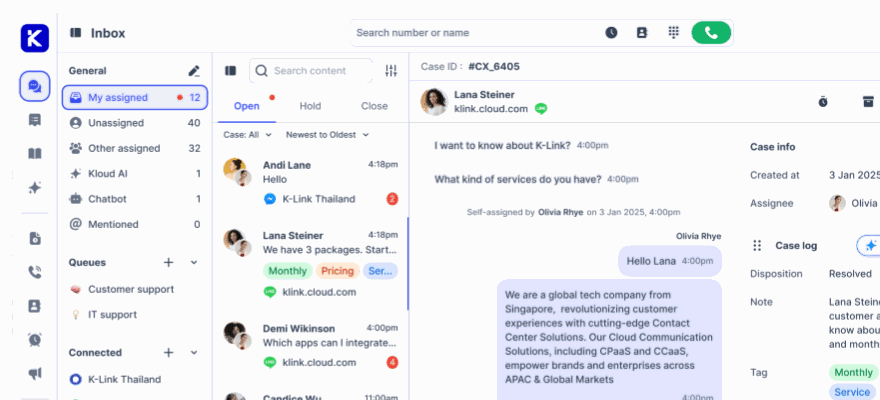
A team inbox for LINE should give every incoming chat an owner and a clock. The features worth checking for are:
- Assignment. Each conversation goes to one agent, either manually or automatically, for example round robin across agents who are available.
- Transfer and internal notes. An agent can hand a chat to a colleague or a specialist and leave a note the customer never sees.
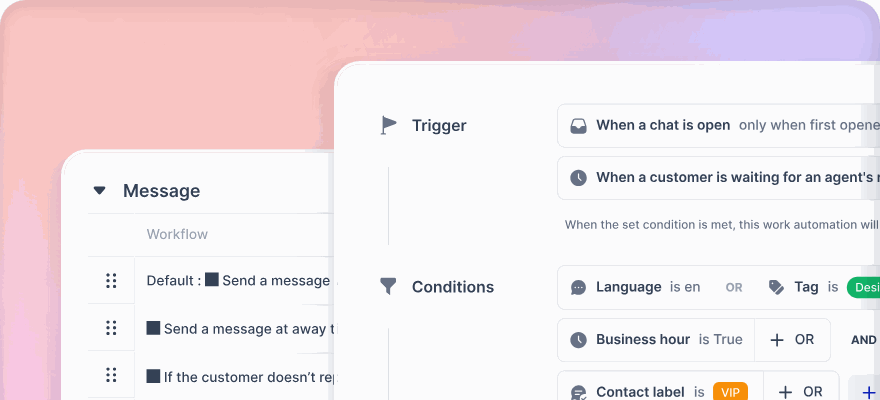
- Queues and SLAs. Conversations wait in a defined queue and are measured against response and resolution targets.
- Auto close. Idle conversations close themselves so the open list reflects real work.
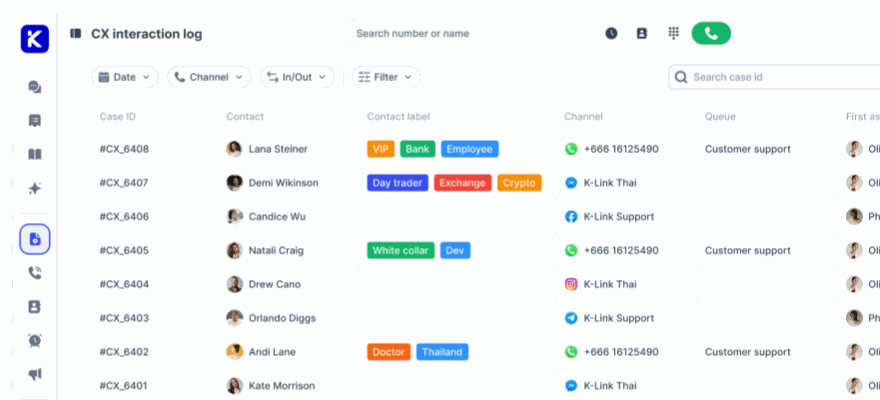
- One customer record. The customer's LINE identity is stored on the contact, so LINE, phone and email history sit on one timeline.
- Media in the thread. Images, video and files stay in the conversation instead of being passed around as screenshots.
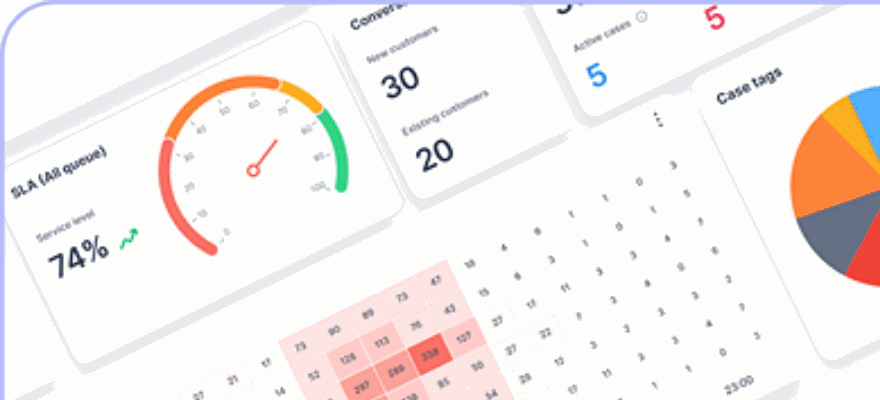
- Reporting and CSAT. Response times, volumes and customer satisfaction surveys after a chat is resolved.
If LINE is one of several channels you support, it also helps when every channel follows the same rules. A LINE chat should not be on a different clock from an email or a phone call.
How do you connect a LINE Official Account to a shared inbox?
You connect through the LINE Messaging API, LINE's official interface for business accounts. It is not a workaround, and you keep your existing account, followers, account name and QR code.
In klink.cloud the setup takes two keys and a webhook, as described in the docs.klink.cloud guide to connecting LINE OA:
- In the LINE Developers Console, open your Messaging API channel and copy the Channel Secret and Channel Access Token.
- In klink.cloud, go to Settings, then Message Integration, then install LINE and paste both values.
- Name the channel and complete setup.
- Back in the LINE Developers Console, enable the webhook for the Messaging API.
From then on, new LINE messages arrive in the klink.cloud inbox. Nothing changes on the customer's side: same account, same followers, same name in the chat header.
Do you need a new LINE Official Account?
No. You connect the account you already have. Your followers, account name and any QR codes you have already printed all stay as they are. This matters for Thai businesses that have spent years building a follower base on one account.
Can you still send broadcasts?
Yes. Broadcasting stays in LINE Official Account Manager, where it is today. What moves to the team inbox is everything that happens after a customer replies, which is the part the Official Account Manager was not built for. LINE also bills message volume separately under your Official Account plan, independent of klink.cloud.
Can an AI agent answer LINE chats for the team?
Yes. In klink.cloud, Kai is the AI agent that answers on LINE using your own content, such as your help articles and product information. It can take real actions through your APIs, and it hands the conversation to a person with the whole thread attached when a human is needed. The same AI agent works across the other channels in the inbox, so you train it once. See Kai, the AI agent in klink.cloud for how it is set up.
A practical way to start is to let the AI agent handle the most common questions, such as opening hours, order status or booking changes, and route everything else straight to the queue.
Does it work in LINE group chats?
Yes, with one LINE rule to know. A LINE user has to add your Official Account as a friend before they can invite it into a group chat. Group chat also needs to be switched on in LINE Official Account Manager under account settings. The steps are in the docs.klink.cloud group chat guide.
How do LINE chats fit with calls and other channels?
For many Thai service teams, the real problem is not LINE alone. It is that LINE lives on a phone or a browser tab, calls live on a separate call center system, and email lives somewhere else. Agents switch tools all day, and managers cannot see the whole workload.
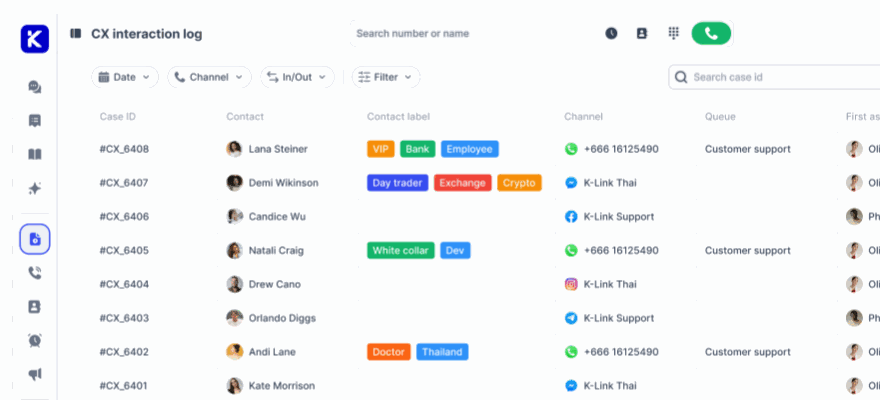
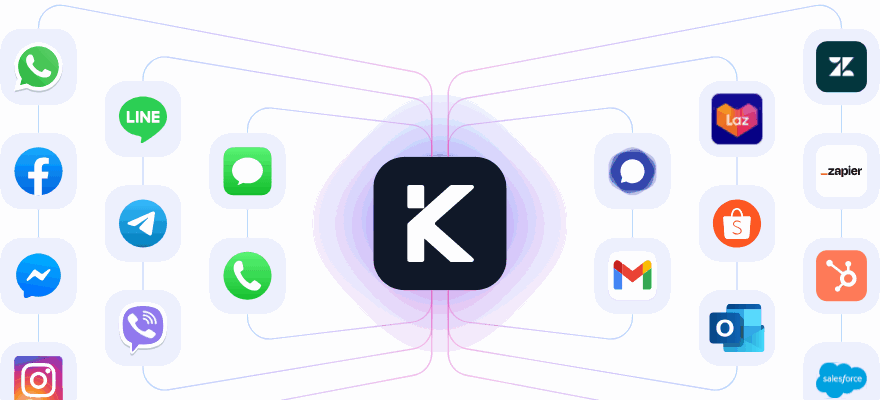
In klink.cloud, LINE arrives in the same queue as WhatsApp, Messenger, Instagram, Viber, Telegram, email, web chat and phone calls, on the same SLA clock and searchable in one CX log. The person who messaged you on LINE last month is the same contact who calls today. If voice is part of your support, see how the cloud contact center and the omnichannel inbox work together.
When should a team move off the Official Account Manager?
There is no fixed size, but these signs usually mean it is time:
- More than two or three people reply to LINE on a normal day.
- In the last month, chats were missed or answered twice.
- You need to report response times to a manager or a client.
- Customers contact you on LINE and by phone about the same issue.
- You want an AI agent to take routine questions without losing the human handover.
If only one or two people answer LINE and volume is low, the Official Account Manager with member roles may be all you need for now.
How is a LINE team inbox priced in klink.cloud?
klink.cloud pricing is based on resolved conversations rather than seats, with unlimited users and the Kai AI agent included. That means adding more people to answer LINE does not add seat fees. Current plans are on the klink.cloud pricing page. LINE's own message charges are billed by LINE.
Frequently asked questions
Can several admins manage one LINE Official Account?
Yes. LINE Official Account Manager supports multiple members with Administrator and Operator roles. For assignment, queues and response time tracking, connect the account to a shared inbox through the LINE Messaging API.
Do I lose my followers if I connect LINE OA to klink.cloud?
No. You connect your existing account with its Channel Secret and Channel Access Token, so followers, account name and QR codes stay the same.
Can I keep broadcasting from LINE Official Account Manager?
Yes. Broadcasts stay in LINE Official Account Manager. The shared inbox handles conversations after customers reply.
Can an AI agent reply to LINE customers?
Yes. Kai, the AI agent inside klink.cloud, answers LINE chats from your own content and hands over to a person with the full thread when needed.
Does klink.cloud work with LINE group chats?
Yes. Enable group chat in LINE Official Account Manager. A user must add your Official Account as a friend before inviting it into a group.
Are LINE messages charged separately?
Yes. LINE bills message volume under your LINE Official Account plan, separately from klink.cloud.