AI Agent for Facebook Messenger Customer Service: How It Works and How to Set One Up
Short answer: An AI agent for Facebook Messenger reads each incoming message on your Page, answers from your own content (FAQs, PDFs, your website), completes simple tasks such as checking an order or booking an appointment, and hands the chat to a person when it can't help. To run one properly you need three things: a connection to your Page through Meta's Messenger Platform, a knowledge base the AI is allowed to answer from, and handoff rules so every chat it can't finish lands with the right human. In klink.cloud, KLINK's omnichannel inbox and cloud contact center, that AI agent is Kai, and Messenger sits in the same queue as LINE, WhatsApp, Instagram, email, live chat and calls.
For many businesses across Southeast Asia, and especially in the Philippines, the Facebook Page inbox is the busiest support channel. Customers ask about prices, stock, opening hours, delivery and bookings, often late at night. This guide explains what a Messenger AI agent should do, the Meta rules that shape it, and how to set one up without losing the human touch.
What does an AI agent do on Facebook Messenger?
A useful Messenger AI agent does more than reply with canned text. At minimum it should:
- Answer from approved content. It responds using your own FAQs, documents and website pages, not guesses.
- Complete simple tasks. Most inbound chats are a lookup or an update: order status, a booking, a change of address. An agent that can call your systems finishes the job instead of opening a ticket.
- Know when to stop. It hands the conversation to a person when the question is sensitive, outside its knowledge, or the customer asks for a human.
- Keep the record. Every conversation, automated or not, is logged so your team can see what was said and what changed.
This is the difference between an AI agent and a keyword bot. A bot that can't act can only stall, and customers soon learn to type "agent" to get past it. The Kai AI agent page explains how Kai takes action instead.
How is an AI agent different from Messenger auto-replies?
Meta Business Suite offers instant replies, away messages and keyword-based automated responses. These are fine for a greeting or an after-hours notice. They match words, though, not meaning, and they can't look anything up.
An AI agent understands varied wording ("is the blue one still available", "do u have blue in M"), answers from your knowledge base and follows rules about what it may and may not do. It also works inside a team inbox, so a human can step in at any point with the full history in front of them.
What Meta rules affect an AI agent on Messenger?
Messenger has its own messaging policy, and any AI agent has to respect it.
- The 24-hour standard messaging window. Under the Messenger Platform policy, a business can normally reply freely within 24 hours of the customer's last message. That window can be longer when the chat started from a Click-to-Messenger ad.
- The Human Agent tag. Meta's Human Agent feature lets a person reply up to 7 days after the customer's last message. It needs app review and business verification, and it is only for manual replies by a person, not automated messages.
- No promotional follow-ups outside the window. Message tags are for specific, non-promotional cases.
In practice this means your AI agent should resolve what it can quickly, while the customer is still in the window, and hand anything that needs a slower human answer to your team early, not at hour 23.
How do you set up an AI agent for Facebook Messenger?
The steps below follow the klink.cloud setup, but the same stages apply to any serious platform.
1. Connect your Facebook Page
You need to be the owner or a full admin of the Page. In klink.cloud, go to Settings > Message Integration > Available Channels, choose Messenger, log in to Facebook and select the Page, as described in Connect to Facebook Messenger.
If some messages don't arrive, set the platform as the primary receiver in your Page's Advanced Messaging settings. The primary routing guide walks through it for both Facebook and Instagram.
2. Build the knowledge base
The AI agent is only as good as what it can read. Kai's knowledge base can be built three ways:
- Write articles or Q&A pairs yourself.
- Upload text PDFs (up to 45 MB).
- Crawl your website, either a single page or every page under the domain.
Start with the 20 to 30 questions your team answers most often. Pull them from your Messenger history if you can.
3. Design the agent's behavior
In Kai's Studio you describe the job instead of drawing a decision tree. A typical setup has a Knowledge Base step for answers, a Transition step that routes by intent (for example bookings to one agent, product questions to another), a Wait and Reply Checker for customers who go quiet, and a Human Agent step for handover. The step-by-step setup guide covers each one.
If the agent should do things, not just answer, connect it to your systems. Kai's Tools and Actions call any service over a webhook, so it can check an order, schedule an appointment or start a refund. Zapier, Make, n8n and your own APIs all work. For bookings specifically, see appointment booking across messaging channels.
4. Test before customers see it
Use the built-in emulator to try real customer phrasing, including messy spelling and mixed languages. When Kai gives a wrong answer, add a correction or use Train AI on that message so it learns the preferred answer.
5. Decide when the AI answers first
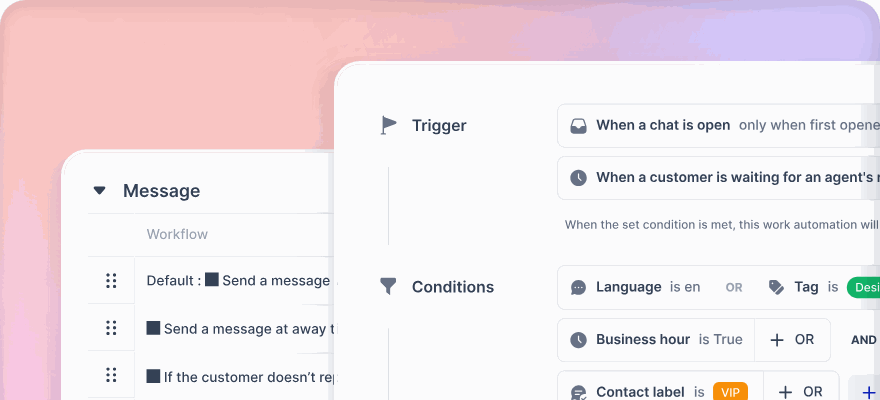
Workflow rules decide when Kai takes a chat. A common pattern is the Let Kai answer first recipe: when a new chat opens, Kai replies immediately. A second workflow assigns a human agent or queue whenever Kai transfers the chat. You can limit the AI to outside business hours, or to certain topics using a plain-English condition such as "general product question".
When should the AI hand a Messenger chat to a human?
Set clear handoff rules before go-live. Good triggers include:
- The customer asks for a person.
- The question involves a complaint, a refund outside policy, or anything legal or medical.
- The agent can't find the answer in its knowledge base.
- The customer has gone back and forth several times without progress.
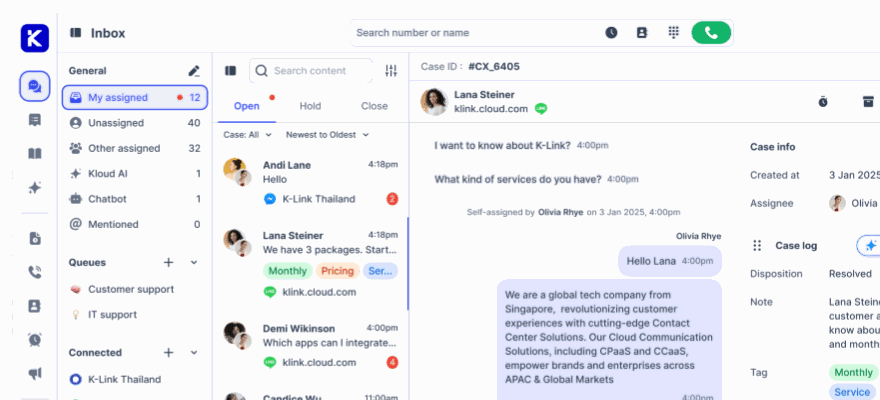
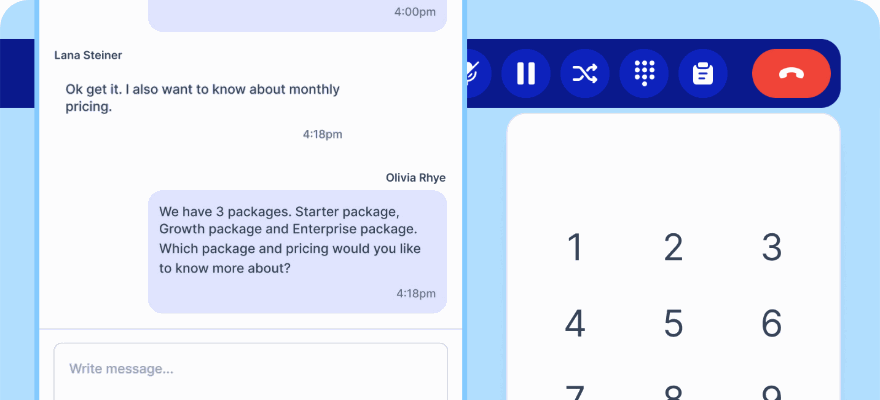
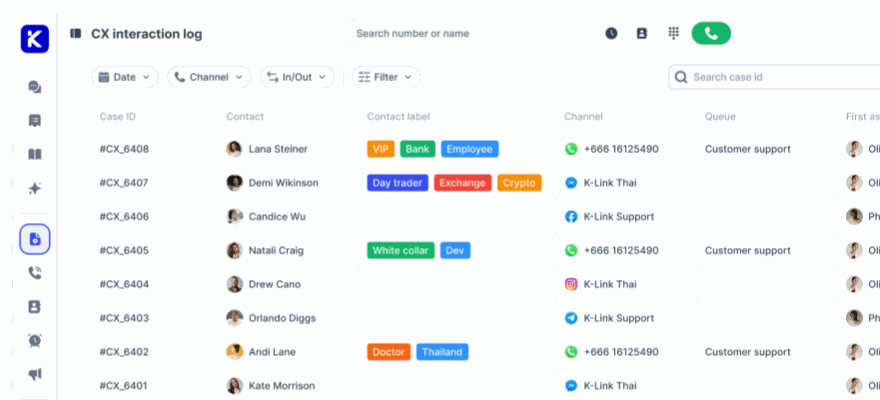
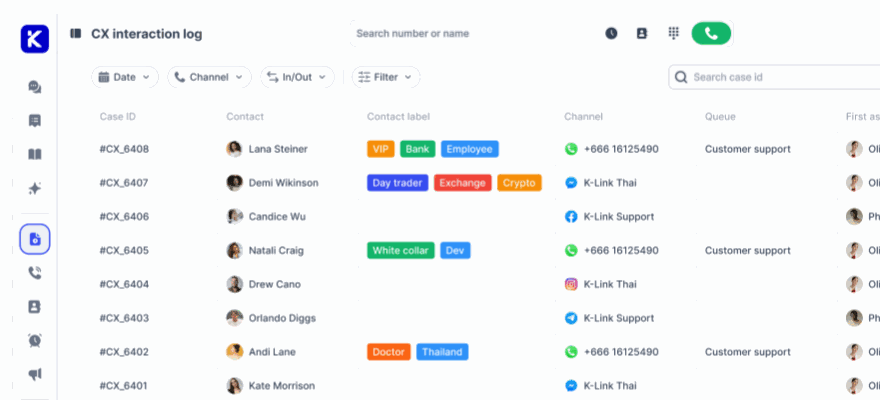
Handoff only works if the human sees the whole conversation. Because klink.cloud keeps Messenger in one omnichannel inbox with your other channels, the agent who picks up the chat sees what Kai said, what the customer asked, and any earlier calls or LINE and WhatsApp messages from the same customer.
Can one AI agent handle Messenger, Instagram, WhatsApp and LINE?
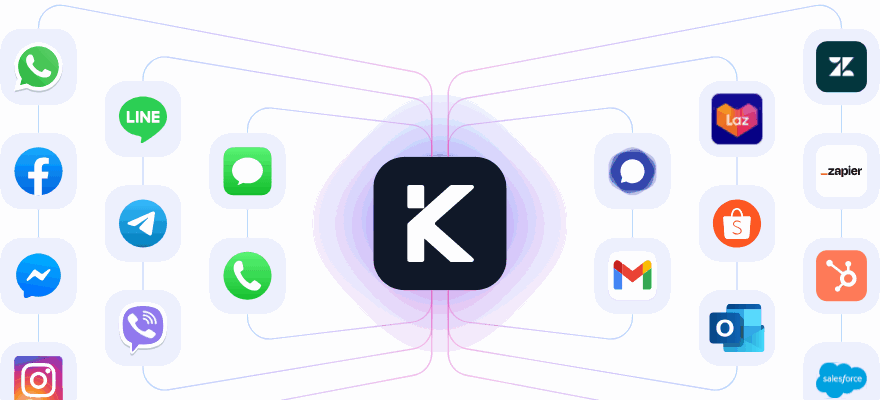
Yes, and it usually should. Customers in Southeast Asia switch channels freely: a question starts on Messenger, continues on WhatsApp and ends with a phone call. Kai works across WhatsApp, Facebook Messenger, Instagram, LINE and website live chat from the same knowledge base, so you maintain one set of answers instead of one bot per channel. For more on why Messenger belongs in that mix, read how Messenger enhances customer service in an omnichannel world.
How do you measure whether the AI agent is working?
Look past the number of messages sent. The metrics that matter are:
- Cases resolved by the AI agent, as a count and as a rate.
- AI-assisted versus fully automated resolutions.
- The share still handled only by your team, to see whether automation is removing work or just adding a layer.
- Median AI response time, and a breakdown by channel.
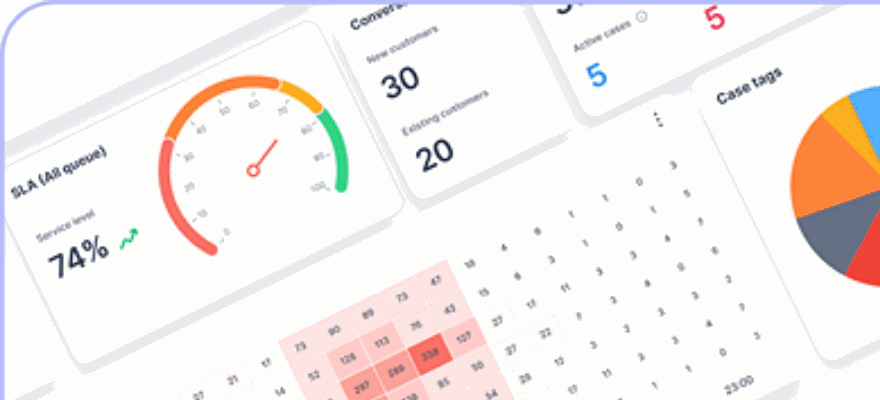
klink.cloud reports these in the AI tab of its dashboard, with a seven-day rolling resolution rate so one quiet day doesn't flatter the result.
How much does a Messenger AI agent cost?
Pricing models vary. Some tools charge per seat, some per message or credit, and some per resolution. klink.cloud uses outcome-based pricing: you pay per resolved conversation, users are unlimited and Kai is included. A resolved conversation counts once per customer session, however many messages it takes and whichever channel it uses. See klink.cloud pricing for current plans.
Frequently asked questions
Can an AI agent reply to Facebook Messenger messages automatically?
Yes. Once your Facebook Page is connected to a platform such as klink.cloud, an AI agent can reply to new Messenger chats automatically, answer from your knowledge base and hand the chat to a person when needed.
Is it allowed to use AI on Facebook Messenger?
Yes, as long as you follow Meta's Messenger Platform policy. Replies should be sent within the 24-hour standard messaging window, and the Human Agent tag, which allows replies up to 7 days later, is only for manual replies by a person.
What does the AI agent need to give accurate answers?
A knowledge base built from your own content, such as written Q&A, PDFs or your website, plus clear rules about what it may do and when to hand off to a human.
Can the AI agent hand a Messenger chat to a human?
Yes. In klink.cloud a workflow assigns the chat to a human agent or queue whenever Kai transfers it, and the person sees the full conversation history.
Does one AI agent work on Messenger, Instagram, WhatsApp and LINE?
In klink.cloud, yes. Kai works across Facebook Messenger, Instagram, WhatsApp, LINE and website live chat from the same knowledge base, and all chats sit in one inbox.
How is klink.cloud priced for Messenger support?
klink.cloud is priced per resolved conversation, with unlimited users and Kai included. A resolved conversation counts once per customer session, whatever the channel.